
RFP Automation · Technical Guide
A technical look at how modern RFP automation parses real-world Excel — and why it has to be done differently than PDF or Word.
Published May 24, 2026 · 9 min read
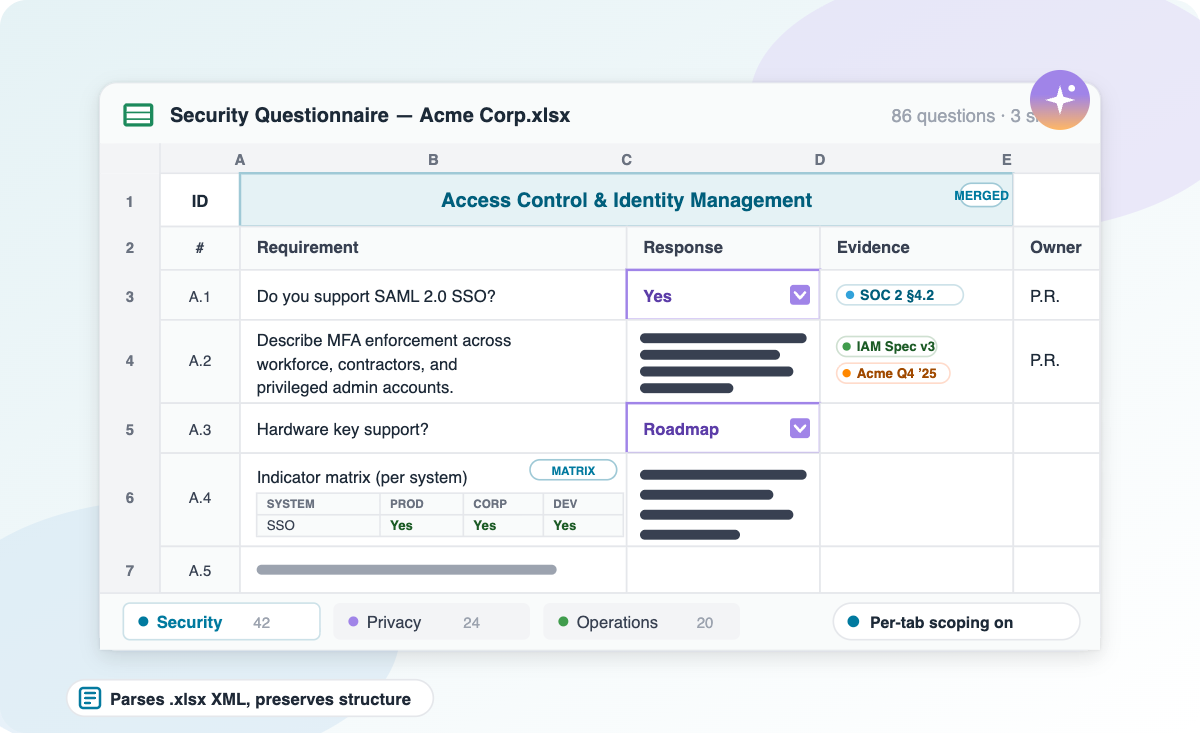
A typical enterprise security questionnaire — merged section headers, dropdowns, multi-column matrices, and per-tab scoping. This is the format that breaks naive AI parsing.
Roughly half of every RFP, RFI, DDQ, and security questionnaire in the enterprise pipeline arrives as an .xlsx file. Many of those files were originally built in Excel 2010 or 2015, have changed hands a dozen times, and now contain a structural cocktail of merged cells, dropdown validation, multi-column compliance matrices, custom indicator legends, and instruction tabs that govern the rest of the workbook.
This is the format that breaks naive AI parsing. A PDF questionnaire has a top-to-bottom flow. A Word document has the same. An Excel questionnaire can put the questions in column D, the answers in column G, the section headers in merged cells spanning rows 4 through 17, the response constraints in a hidden data-validation rule, and the legend defining what S and P mean on a separate tab. There is no canonical layout. There never will be.
This post explains how Inventive AI's RFP automation platform handles real-world Excel questionnaires — what works automatically, what requires a human-in-the-loop step, and why that trade-off produces better answers than a fully autonomous parser would.
Excel is a two-dimensional, free-form layout engine with effectively unlimited visual conventions. Word and PDF are linear-document formats with strong layout priors. That difference shows up everywhere in AI parsing.
A modern multimodal model can ingest a PDF questionnaire and infer the question/answer structure in one shot, because there is essentially one structural pattern (questions flow downward, answers go next to or below them). The same model, given an Excel file, has to guess between hundreds of conventions: are questions in column A or column D? Do answers go in the same row or a different sheet? Is that merged cell a section header or a buyer's typo? Does the dropdown in B7 constrain B7 or the entire B column?
Inventive AI's product team articulates this directly: Excel can be really open-ended and pretty complicated. There is no AI system that can take any Excel in the world and process it 100%. That is not a marketing hedge — it is the technical reality, and it is why a useful Excel handler has to combine deterministic structural extraction with a lightweight human-in-the-loop tagging layer.
Assistive tagging is a UI layer that lets a user mark a few example cells with their semantic role, then propagates those labels across the entire sheet using AI. It is Inventive AI's default workflow for Excel and the dominant pattern in the broader RFP-automation category.
The workflow is intentionally lightweight. The user uploads the .xlsx, clicks a cell, and assigns it a role: Section, Question, Response, Dropdown, Multi-Column, or Custom Indicator. The system then propagates that role to every visually-similar cell in the sheet using a similarity classifier that looks at font weight, fill color, indentation, merge state, and the cell's surrounding pattern — not just raw text.
If the user tags one cell in column C as a question, the AI tags every similar-looking cell in column C as a question. If the user tags one merged Security header as a section, the AI tags every other merged header the same way. The user then scans the result, fixes the occasional mis-tag, and clicks Auto-generate. The model fills the response cells.
The reason this beats a fully autonomous parser is the cost of error. A wrong tag at the parsing stage cascades into hundreds of misplaced answers downstream. The cost of getting a tag right is five seconds of human attention. Trading a small fixed cost for a near-zero error rate is the right engineering choice.
Merged cells are the single most common cause of broken Excel parsing, and Inventive AI handles them through the same assistive-tagging mechanism. The parser reads the .xlsx archive (which is XML under the hood), extracts the <mergeCells> range from each worksheet, and treats each merged region as a single logical entity rather than a collection of duplicate cells.
When a user tags a merged section header that spans, say, rows 4 through 9, the AI treats it as one Section tag. The questions in rows 4 through 9 then inherit that section label automatically. When the AI propagates the tag to other similar-looking merged headers in the sheet — Pricing in rows 10–14 and Implementation in rows 15–21 — it applies the same scoping logic to each.
This matters because the legacy approach (treating each merged cell as N duplicate cells) produces N duplicate section labels and confuses every downstream step. By reading the merge range from the XML directly, Inventive's parser preserves the structural intent of the file.
Dropdown cells in Excel are not free-text cells with a UI hint — they are cells with an attached <dataValidation> rule that defines a closed set of allowed values. Inventive AI reads that rule directly from the .xlsx structure and constrains the model's output to the dropdown's exact enum.
This is the part most generic LLM tools get wrong. Asked Are you SOC 2 certified? with no constraint, a chat model will write a paragraph. That text is correct, but the buyer's Excel cell only accepts Yes, No, or Maybe. The buyer's evaluation script rejects the row. The respondent loses points or gets disqualified.
Inventive AI's parser extracts the allowed values directly from the cell's data-validation list and passes them to the generation step as a hard constraint. The model returns Yes. The verbose answer with citations is routed to the adjacent free-text column when one exists. The user does not have to tell the system what the dropdown values are — they are read straight from the spreadsheet.
Many enterprise RFPs use a compliance matrix where each row is a requirement and each column is a compliance level (Compliant / Partial / Non-compliant) — the respondent marks one column per row with an X. Inventive AI supports this layout natively.
The user tags the column-set once and tells the system what marker goes in each column and what each column means semantically. The model evaluates each row's requirement against the Knowledge Hub and selects the column whose semantics best match the evidence. Confidence is reported alongside each row, so weak matches surface for human review.
Column-sets are saveable as templates. If a buyer sends one RFP with a Full/Partial/None matrix in February and a second RFP with the same matrix in May, the second one is one click. This compounds in pipelines where a single buyer organization sends multiple questionnaires per year.
Some questionnaires use letter codes instead of compliance matrices: S for standard feature, P for partial or on-roadmap, N for not supported. Inventive AI accepts arbitrary user-defined indicator legends and applies them consistently across the sheet.
The user defines each letter's meaning in one place. The AI classifies each row against the Knowledge Hub and emits the appropriate letter. Like multi-column templates, indicator legends are saveable and reusable across future RFPs.
Inventive AI processes Excel files tab-by-tab, with section-question-response tagging applied per tab. Workbooks with 5, 10, or 20+ tabs are handled by treating each tab as its own logical questionnaire. The user can scope the AI to specific tabs and even specific line ranges within a tab.
This addresses a common buyer concern: if there are 10 tabs and 56 line items on tab 4, but the team has only been assigned line items 25 through 52, the platform supports that scoping today. The model only generates responses for the tagged cells in the tagged ranges; everything outside that scope is left untouched.
Many Excel RFPs include a first tab with instructions: Mark 1 if compliant, 2 if non-compliant, 3 if compliant via third party. Inventive AI ingests the instructions tab into the project's context so the model is aware of them when generating responses.
The honest framing matters here. Auto-applying instructions sounds magical but is high-risk: a single misread instruction would corrupt every answer downstream. The current workaround (read the instructions, set up the indicator legend, save as a template) takes 30 seconds and produces deterministic, correct results.
Old enterprise Excel files are the worst case and the most common case. They combine mixed content, dropdowns, checkboxes, response cells, and free text on the same sheet, often with inconsistent formatting across tabs because they have been edited by dozens of people over a decade.
Inventive AI's assistive tagging is specifically designed for this case. The structural extraction layer reads whatever the .xlsx archive contains — merged ranges, data validations, conditional formats, named ranges — and surfaces it through the same tagging UI. The user does not need to know the file's history or layout conventions. They tag a few example cells; the AI does the rest.
This is the failure mode where pure-LLM tools (ChatGPT, generic Copilot) consistently break. A model with no structural extraction layer treats a 10-year-old security questionnaire as raw text, loses the dropdown enums, flattens the merged cells, and produces answers that look right but won't import back into the original file.

Inputs and outputs preserve the same .xlsx structure — merged cells, dropdowns, tabs — so the buyer receives the same file format they sent.
When the AI finishes generating, Inventive AI exports the workbook back into the original .xlsx structure. Section headers, merged cells, dropdown rules, multi-column matrices, and tab layout are preserved exactly. The AI's responses populate only the cells tagged as response slots. Everything else is left untouched.
The mechanism is straightforward: the parser keeps a reference to the original file structure throughout the workflow and writes generated content into specific cell coordinates at export time. The output is the same .xlsx the buyer sent, with the response cells filled in.
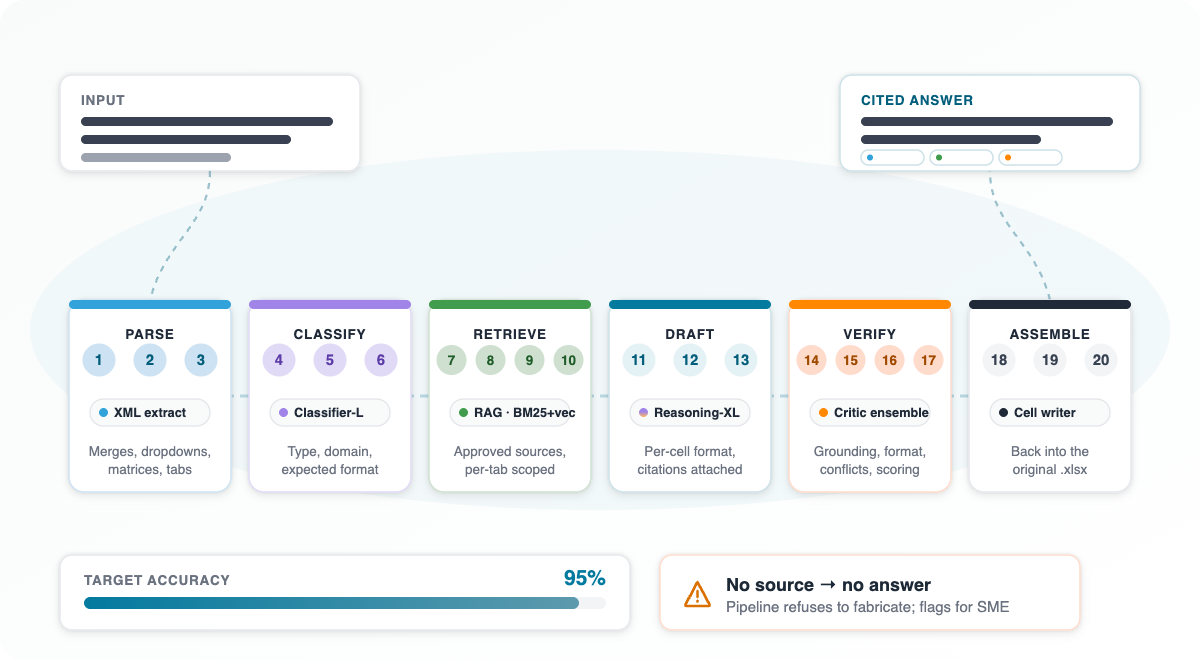
The 20-step, multi-model pipeline: Parse → Classify → Retrieve → Draft → Verify → Assemble. Target accuracy 95%, with an explicit no-source-no-answer guardrail.
Every response Inventive AI generates flows through a 20-step, multi-model pipeline. The Excel-specific path adds a structural extraction front-end and a structure-preserving export back-end, but the core agentic loop is the same as for PDF and Word.
Across this pipeline, the product targets 95% answer accuracy on questions for which the Knowledge Hub contains relevant source material. For questions where no relevant source exists, the AI returns an explicit information unavailable tag rather than fabricating an answer. This is the structural difference from a generic LLM: refusal is a feature, not a bug.
Three structural differences separate purpose-built RFP automation from generic AI: dropdown-aware constraint decoding, native cell-level citations, and a governance layer that learns from edits over time.
Generic LLMs do not read Excel data-validation rules. They will write a paragraph into a Yes/No cell. They cannot propagate a tag across merged cells. They have no concept of a multi-column matrix. They cannot save an indicator legend as a template. They do not cite sources at the sentence level. They do not learn from a user's edits across responses.
Legacy RFP tools (Responsive being the most common in the enterprise) handle some of this, but the workflow is notoriously clunky — one of the most common complaints from customers replacing it is the time spent fighting the tool to upload an Excel file correctly. Customers move to Inventive AI specifically because the Excel handling is purpose-built rather than retrofitted.
The governance layer is the structural advantage that is hardest to replicate. Every edit a user makes to a generated answer is captured. The system understands why the edit was made and saves that intent in memory. Over time, this produces a learned representation of what good answers look like for the customer's specific content — a representation that no generic LLM and no legacy Q&A library can match.
Real-world Excel questionnaires are structurally hostile to naive AI parsing. The right architecture is not give the file to a model and hope — it is a deterministic structural extraction layer (read the XML, get the merge ranges, get the data validation rules) combined with a lightweight human-in-the-loop tagging step that handles the open-ended layout decisions a model cannot reliably make on its own.
Inventive AI's assistive tagging workflow is the production implementation of this architecture. It handles merged cells via XML range extraction. It handles dropdowns via data-validation rule reading. It handles multi-column matrices and custom indicators through user-defined, template-savable column-sets. It handles multi-tab workbooks tab-by-tab with per-tab scoping. It preserves the original .xlsx structure on export. And it routes every answer through a 20-step, multi-model pipeline that targets 95% accuracy and refuses to fabricate when the source content is missing.
For teams replacing manual Excel-questionnaire work — whether they are coming from spreadsheet-and-copy-paste, from Copilot, or from a legacy Q&A library — this is the relevant technical bar.
See the Excel handler live
Bring your worst .xlsx — merged cells, dropdowns, multi-tab, a 2014 vintage. We will tag it, generate it, and hand you the original file back, filled in and cited.