
Easy RFP Response Template (Excel) for Sales Teams
%20for%20Sales%20Teams.jpg)
How many hours does your team spend copying answers into spreadsheets before you even reach a first draft? If you’ve searched for an rfp response template Excel file, chances are you’re trying to bring order to a process that feels scattered and repetitive.
Sales and proposal teams often rely on Excel because it’s familiar and flexible. But without a clear structure, spreadsheets quickly turn into version-control headaches, conflicting answers, and pricing sheets that don’t line up with the final submission. When deadlines are tight and stakeholders are waiting, even small formatting issues can slow everything down.
In this blog, we’ll explore a ready-to-use RFP response Excel template and how to customize it for your team, and where spreadsheets start to fall short as your RFP volume grows.
Comprehensive RFP Response Template Excel (Ready to Use)
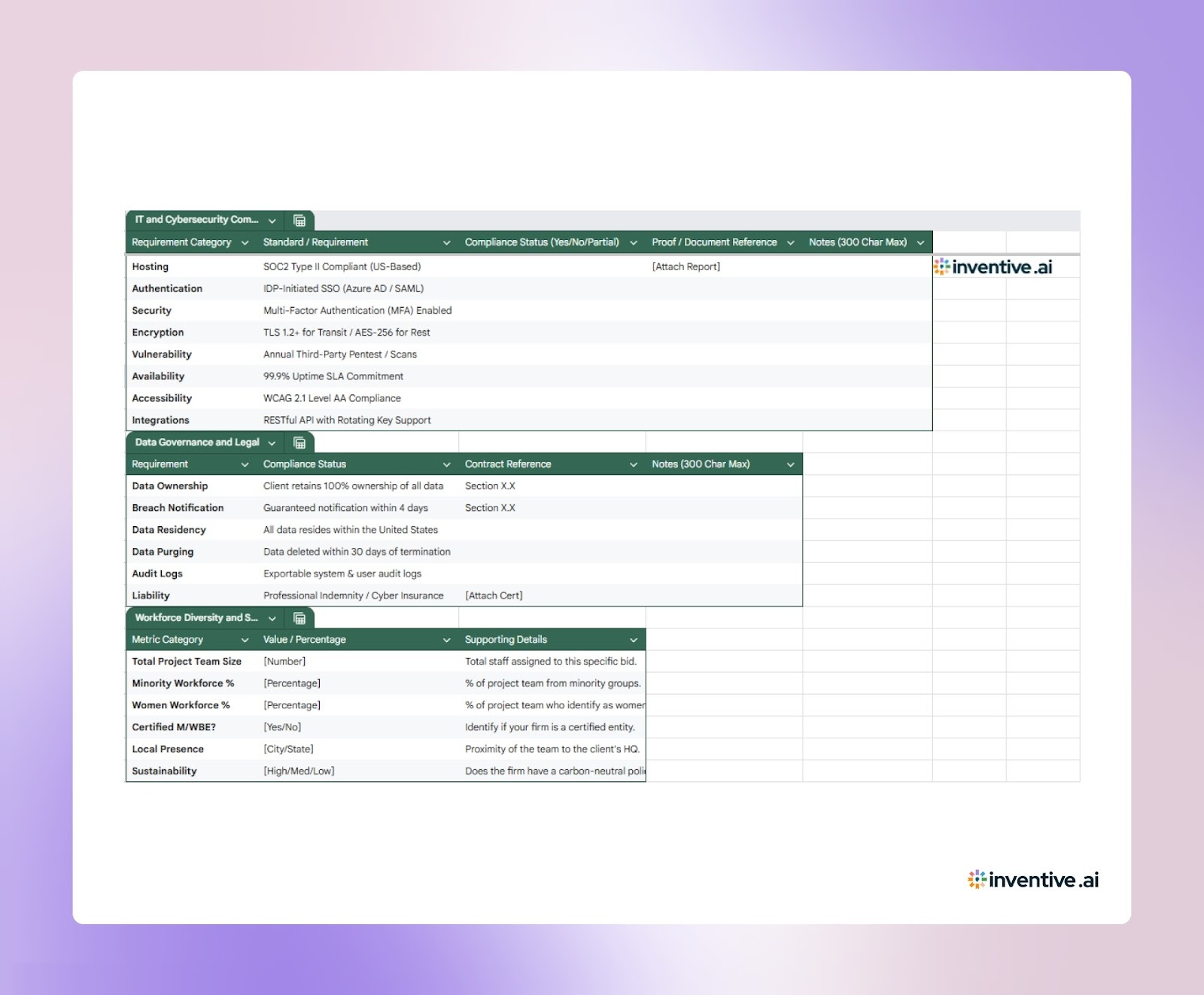

Below is a structured, ready-to-build workbook layout you can copy directly into Excel. Each sheet serves a specific purpose, so your team isn’t scrambling across tabs the night before submission.
Instructions (Read Me First)
Include this, so your SMEs and Sales team don’t break the formatting.
This small instruction block alone prevents messy edits, duplicated work, and last-minute formatting chaos.
Sheet 1: The Control Tower (Internal Strategy)
For internal decision-making, before you commit serious time.
Table A: Bid Qualification
This prevents your team from chasing low-probability deals that drain time.
Table B: Win Themes
By mapping responses to themes early, your answers stay consistent across sections.
Sheet 2: Technical & Functional Grid
This is your main working sheet.
Use filters by “SME Owner” to assign work fast.
Keep responses concise—detailed narratives belong in Sheet 3.
Sheet 3: Narrative & Strategy Bridge
Track longer responses outside Excel.
This keeps Excel structured while Word/PDF documents handle complex explanations.
Sheet 4: 5-Year TCO & Financials
Prevents pricing confusion and hidden cost disputes.
This format makes multi-year contracts transparent and easier for procurement to review.
Sheet 5: Compliance, Security & Diversity
The gatekeeper sheet.
Table A: IT & Cybersecurity
Table B: Workforce Diversity
Table C: Implementation RACI
If any required compliance item shows “No,” address it before submission.
Sheet 6: Post-Submission Review (Knowledge Harvest)
Your internal RFP memory bank.
Most teams skip this step and repeat the same mistakes later.
Once your workbook is set up, the next step is using it correctly to avoid internal confusion.
How to Use This RFP Response Template in Excel?
This workbook works best when you treat it as a controlled system, not just another spreadsheet. The goal is clarity, clear ownership, clear deadlines, and clear compliance tracking from day one.
Follow these steps to keep your response organized and submission-ready:
- Duplicate Before Editing: Create a fresh copy of the workbook for every new RFP. Rename it with the client name and due date to avoid version mix-ups.
- Start with Bid Qualification: Complete Sheet 1 first. Confirm strategic fit, resource capacity, and win probability before assigning work.
- Assign Owners Early: In Sheet 2, fill in the “SME Owner” column immediately. Each requirement should have one accountable person.
- Use Status Tracking Strictly: Update the “Status” column consistently (Not Started, Drafted, In Review, Final). This allows the project lead to quickly monitor progress.
- Keep Long Narratives Outside Excel: When responses exceed 300 characters, move them to Word or PDF and track them in Sheet 3.
- Review Compliance Before Submission: Scan Sheet 5 to confirm no mandatory requirement is marked “No” without explanation.
After learning the basics, you should adjust the template to match the buyer’s industry and evaluation criteria.
How to Customize RFP Response Template (Excel)?
Not every RFP looks the same, and your template shouldn’t either. A generic sheet works for small bids, but larger or industry-specific opportunities require adjustments to match evaluation criteria and buyer expectations.
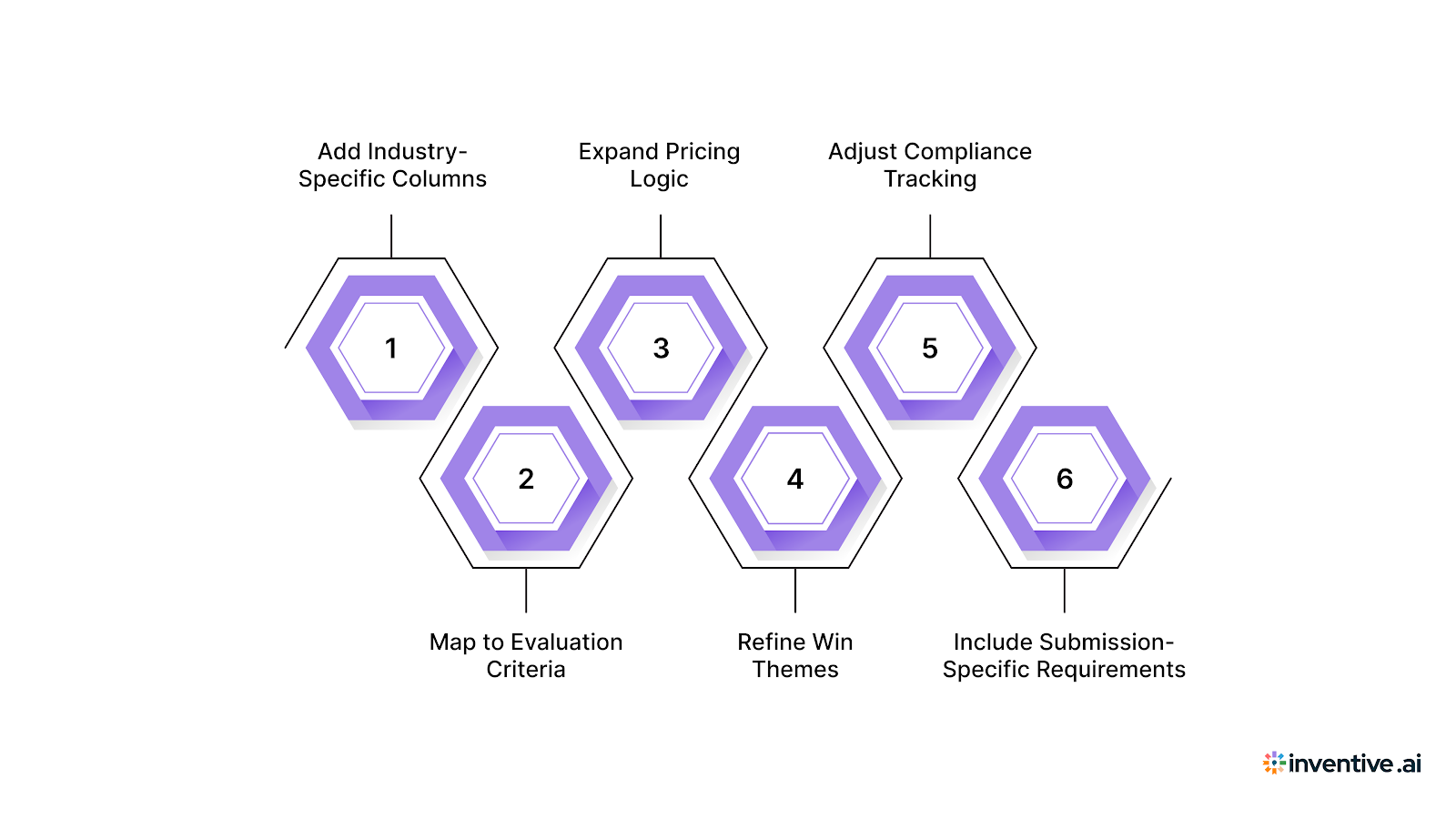
Here’s how to customize the workbook without breaking its structure:
- Add Industry-Specific Columns: For healthcare, include a HIPAA or data privacy column in Sheet 5. For government bids, add certifications and contract vehicle fields. For SaaS, expand technical requirement fields in Sheet 2.
- Map to Evaluation Criteria: If the RFP includes scoring weights, add a “Score Weight” column in Sheet 2. This helps your team focus more time on high-value sections.
- Expand Pricing Logic: In Sheet 4, insert columns for tiered pricing, user bands, or multi-year discounts if the buyer requests options.
- Refine Win Themes: Update the Win Themes table in Sheet 1 based on the specific deal. Tie every major requirement back to one of those themes.
- Adjust Compliance Tracking: If the RFP includes mandatory checklists, mirror them directly inside Sheet 5 to prevent missed requirements.
- Include Submission-Specific Requirements: Add a checklist row for required attachments, demo videos, or signed forms so nothing gets left behind.
Even with customization, you may start noticing limits as RFP volume and complexity increase.
Why Excel Templates Alone Slow Down Enterprise RFP Teams?
Excel works well at the start. But as deal size increases, question counts grow, stakeholders multiply, and deadlines tighten. What begins as a simple tracking sheet often turns into version confusion, repeated answers, and manual rework.
Here’s where Excel starts to create friction for enterprise teams:
- Manual Drafting Bottlenecks: Every new RFP requires copying answers from past files. Teams spend hours searching old folders instead of writing stronger responses.
- Version Control Issues: Multiple file copies circulate through email and shared drives. It becomes unclear which version is final.
- Stale Content Risks: Approved answers sit in old spreadsheets and go outdated. There’s no automatic alert when messaging conflicts with newer positioning.
- Limited Collaboration Visibility: SMEs update cells, but there’s no clear audit trail or centralized content source across deals.
- Compliance Gaps: Tracking “Yes/No” responses manually increases the chance of missing mandatory requirements.
- No Insight Across Deals: Excel files live separately. Lessons from one RFP rarely feed into the next.
When manual tracking starts costing time, automation becomes a serious consideration.
Move Beyond Excel: Automate RFP Responses with Inventive AI
When RFP volume increases, manual spreadsheets can’t keep pace. Teams need faster drafting, cleaner collaboration, and tighter control over messaging without digging through old files every time.
Here’s how Inventive AI upgrades the entire RFP workflow:
Context Engine That Understands the Full RFP
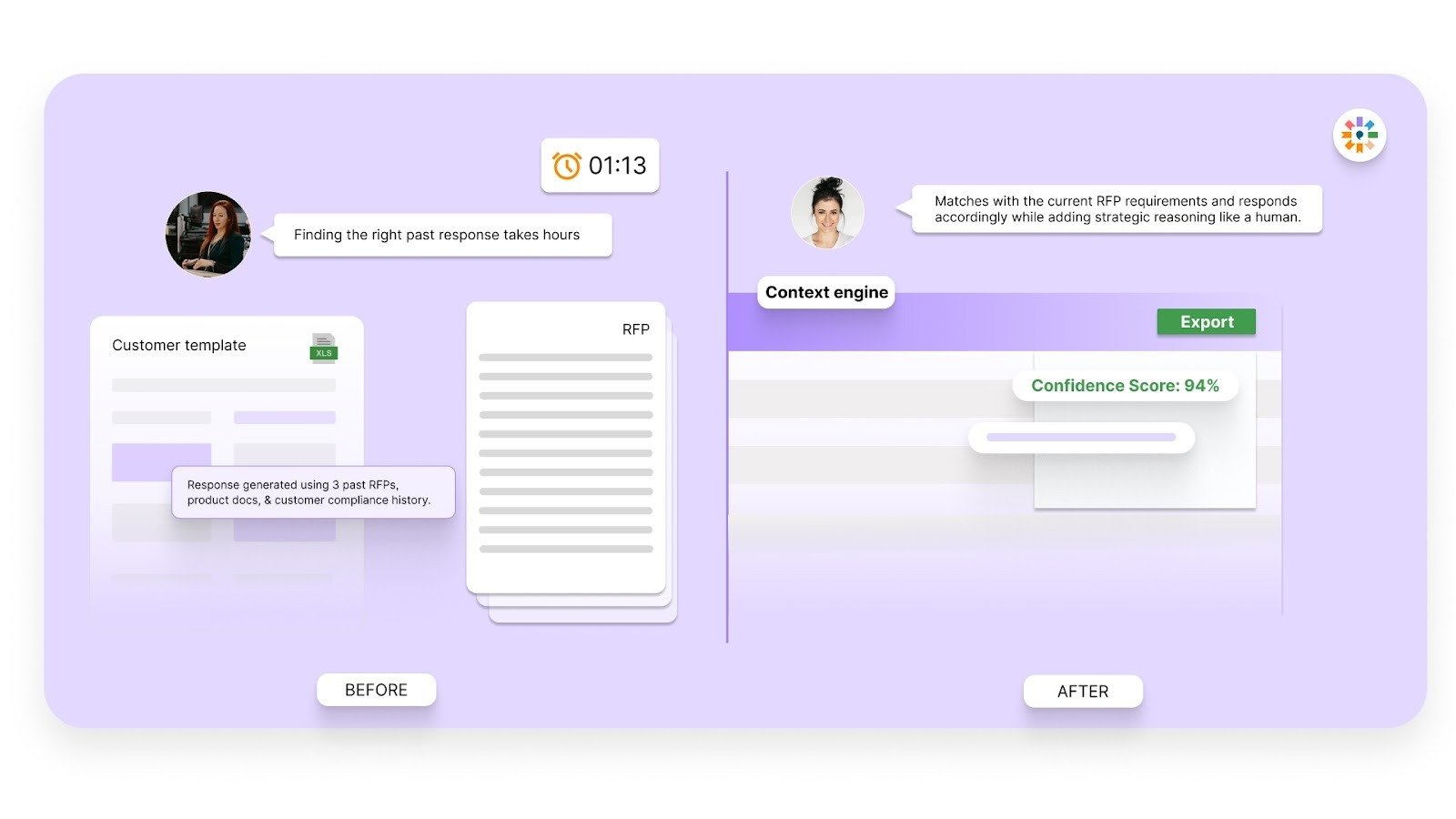
Most competitors rely on shallow ChatGPT-style prompts or basic RAG lookups, which often produce generic, surface-level answers. Inventive uses multi-layer reasoning that evaluates the full RFP context: requirements, intent, evaluation criteria, and supporting documents. The result is precise, customized responses that read like they were written by a domain SME, not stitched together from fragments.
Real-Time Conflict Detection
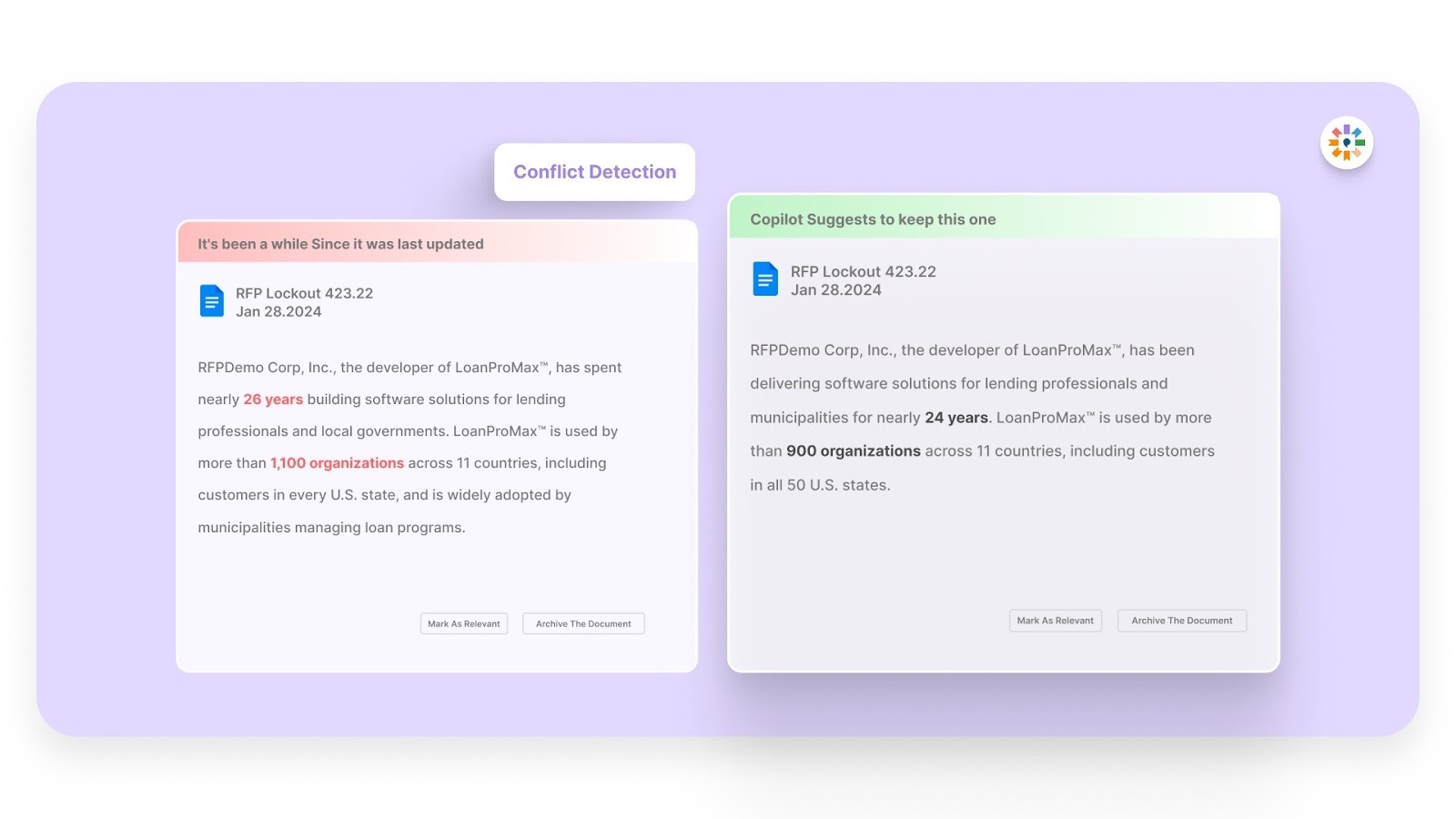
Traditional tools cannot detect contradictions across responses, especially when multiple contributors are involved. Inventive automatically flags conflicting statements the moment they appear. This protects your team from submitting inconsistent claims that create risk during technical evaluation or legal review.
Automatic Outdated Content Detection
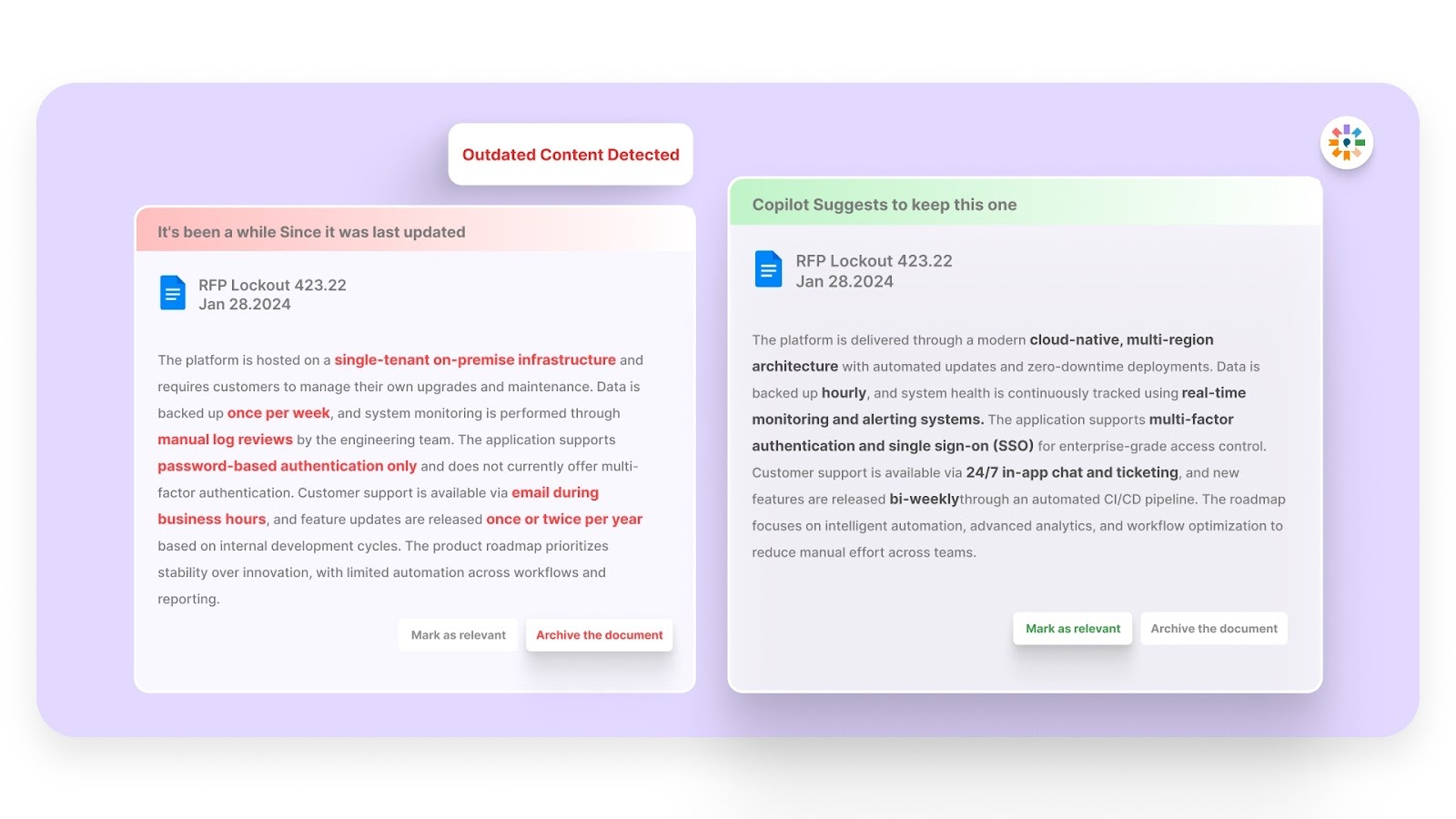
Most organizations maintain large answer libraries filled with stale or partially obsolete content. Inventive continuously scans for outdated, non-compliant, or misaligned responses before they make it into a submission. This significantly reduces manual audit cycles and last-minute rewrites.
2X Higher-Quality Responses

Inventive AI’s multi-agent framework does more than generate draft text. It analyzes the intent behind each question, strengthens clarity and completeness, and keeps responses consistent with the proposal’s strategic positioning. The outcome is consistently stronger, more coherent answers that elevate proposal quality across deals.
Simple, Intuitive UI with Rapid Adoption
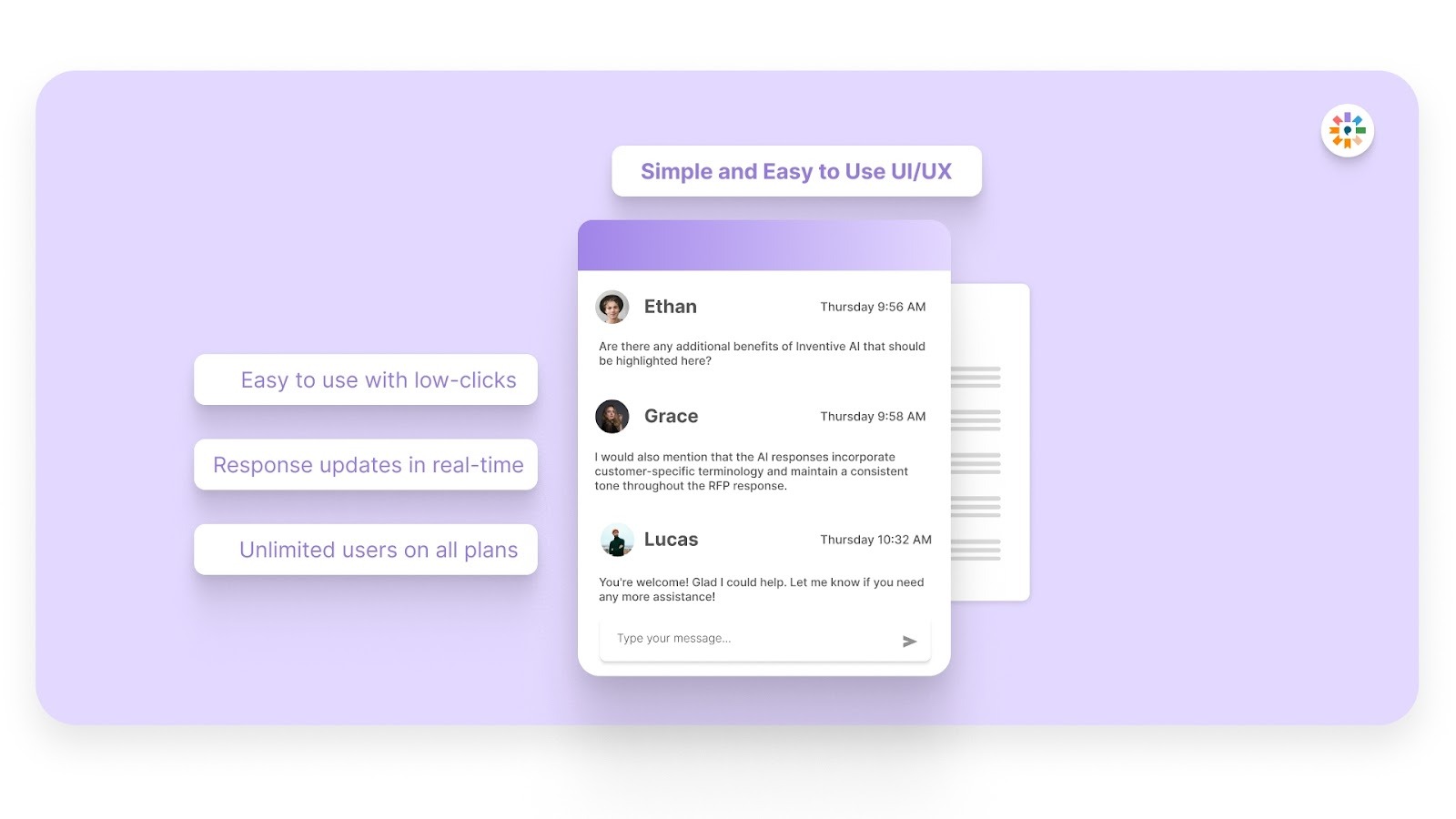
Advanced capability doesn’t require complex onboarding. Inventive is recognized as the easiest-to-use RFP software on G2 and maintains a 100% adoption rate across its customer base. Even teams new to AI tools can implement it quickly and integrate it into their existing workflow without disruption.
FAQs
1. Can I use an Excel RFP response template for RFIs and security questionnaires?
Yes, the same workbook structure can support RFIs and security questionnaires with minor adjustments. You may need to rename columns or add security-specific tracking fields. The core tracking and ownership logic remains the same. Just customize the sheet names to match the request type.
2. How many people should work on one RFP response template?
It depends on deal size, but larger RFPs often involve Sales, Product, Legal, Security, and Finance. Each requirement should have one clear owner to avoid confusion. A single project lead should monitor progress across sheets. Too many editors without ownership creates delays.
3. Should I submit the Excel file to the buyer?
Only if the RFP explicitly asks for an Excel response. Many buyers require answers in Word, PDF, or within a procurement portal. In those cases, Excel acts as your internal working document. Always follow the submission instructions carefully.
4. How do I handle last-minute RFP amendments?
Create a new column labeled “Amendment Impact” in your tracking sheet. Mark affected requirements and assigned immediate review. Keep a timestamped note of changes to avoid confusion. Clear documentation reduces risk during final submission.
5. When should a company move beyond spreadsheets?
If your team handles multiple RFPs per month, struggles with content reuse, or spends hours searching past answers, spreadsheets may no longer scale well. Growth in deal size and complexity often exposes manual gaps. That is usually the signal to consider dedicated RFP response software.

90% Faster RFPs. 50% More Wins. Watch a 2-Minute Demo.
.avif)
Mukund Kumar
Mukund Kumar is Growth Marketing Manager at Inventive AI. An IIT Jodhpur graduate with 3+ years in growth and performance marketing, he specializes in data-driven strategies that connect sales and RFP teams with the automation they actually need, helping revenue teams cut through generic AI hype and win more deals.

Somya Nahar
Somya Nahar is a Senior Content Writer with 5+ years across tech, SaaS, and finance. She writes about AI and RFPs for the people doing the work, the proposal managers, sales teams, and writers who deal with tight deadlines and long questionnaires, and want practical ways to make that easier.