How to Set Up the HubSpot RFP Agent: Complete Step-by-Step Guide (2026)
.jpg)
Your sales team just received an RFP. It's 47 pages. There are 120 questions. The deadline is Friday. Sound familiar?
HubSpot's RFP Agent, powered by Breeze, HubSpot's AI platform, was built to take the grind out of exactly this scenario. Upload the RFP, configure your knowledge sources, run the agent, and get a structured draft response, without manually triaging every question yourself.
In this guide, you'll get the complete, accurate setup walkthrough pulled directly from HubSpot's official documentation, plus an honest take on where the tool shines and where high-volume RFP teams will hit its limits. Let's get into it.
What Is the HubSpot RFP Agent?
The HubSpot RFP Agent is a Breeze AI agent, currently in Beta, that automates the creation of RFP responses. You upload an RFP document, the agent processes the file using your configured knowledge sources and CRM data, and it generates a structured response draft you can review, refine, and export.
It lives in Breeze Studio and is available across multiple HubSpot plans, but it's important to note that HubSpot Credits are required each time you run it. It's not unlimited.
Plans that include access: Marketing Hub, Sales Hub, Service Hub, Content Hub, Smart CRM, Commerce Hub, and Data Hub, at Professional, or Enterprise tiers (Data Hub requires Professional or Enterprise). Access for Starter plan users is limited to basic AI assistance and select pre-built agents rather than full agent customization.
Before You Start: Prerequisites Checklist
Before you can install and configure the RFP Agent, make sure:
- AI settings are enabled in your HubSpot account, including the Files data setting. (Go to Settings → Account Defaults → AI)
- You have Super Admin access. Only Super Admins can install and configure the RFP agent.
- HubSpot Credits are available in your account. Each agent run consumes credits.
- Your knowledge assets are ready: Company overviews, past proposals, product documentation, security/compliance docs, and case studies in PDF, .txt, .md, .html, .pptx, or .docx format.
Quick tip before you set anything up: If your team handles 10 or more RFPs per year, it's worth knowing there's a purpose-built alternative to this setup. Inventive AI is an AI RFP platform where users report 50% higher win rates and 90% faster response times, with no manual configuration, no credit limits, and no knowledge vault setup required. If you're running a serious RFP program, check it out first →
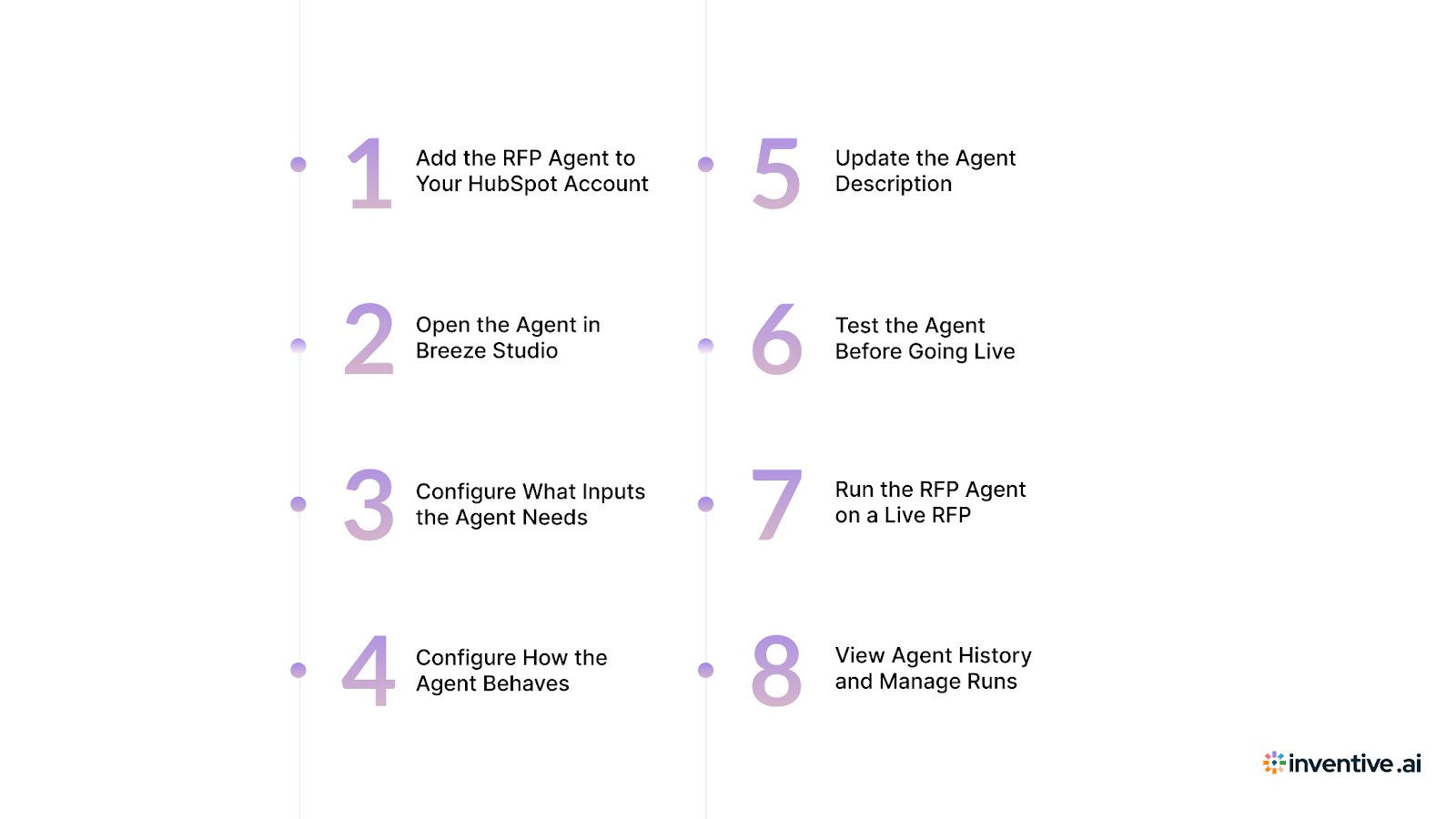
Step 1: Add the RFP Agent to Your HubSpot Account
Super Admins install the agent through the Breeze Marketplace.
- In your HubSpot account, navigate to Breeze → Marketplace
- Use the search bar to search for an RFP agent
- Click it in the search results
- Click Add
- In the dialog box, click Add again to confirm
- To open the agent immediately, click Open. You'll be taken to the agent editor in Breeze Studio.
That's it. The agent is now in your account and visible in Breeze Studio.
Step 2: Open the Agent in Breeze Studio
All future configuration happens in Breeze Studio, not the Marketplace.
- Navigate to Breeze → Breeze Studio
- Click the Request for Proposal Agent card
- In the upper right, click Configure agent
You'll see three main configuration areas: What inputs the agent needs from users, how the agent behaves (instructions + tools + knowledge), and the agent description.
Before You Dive In: Does HubSpot Support Your RFP Format?
This is the first question to answer, because it determines whether this setup is even viable for your team.
| RFP Format | HubSpot RFP Agent | Inventive AI |
|---|---|---|
| Q&A / Text-based | ✅ Supported | ✅ Supported |
| ⚠️ Basic upload only | ✅ Full parsing | |
| Excel / Spreadsheet | ❌ Poor support | ✅ Fully supported |
| PowerPoint (.pptx) | ❌ Not supported | ✅ Supported |
| Word (.docx) | ⚠️ Limited | ✅ Supported |
| Web forms/portals | ❌ Not supported | ✅ Supported |
HubSpot's RFP Agent works best with clean, text-based Q&A RFPs. If your prospect sends you a structured questionnaire in a Google Form or a simple Word doc, it handles that reasonably well.
Step 3: Configure What Inputs the Agent Needs
This is where you define what information gets fed to the agent, either once during setup or each time someone runs it.
Navigate to the upper left and click Manage inputs. You'll see two sections:
During setup (one-time inputs): These are inputs you configure once, and the agent uses automatically every time it runs. A great example is your RFP proposal template; add it here so the agent always formats responses consistently without requiring a user to upload it each time.
Each time the agent runs (per-run inputs): These are inputs that a user provides fresh every time. By default, this includes the RFP file itself, the document that changes with every new RFP. You can also add fields like a Client ID or Deal ID to track each run.
To add an input:
- Under the relevant section, click the Add input dropdown and select an input type
- Configure the input (name, description, field type)
- Select the Required checkbox if it must be filled in before the agent can run
- Click Add input again for additional fields
- When done, click the X in the upper right of the right panel to close.
Step 4: Configure How the Agent Behaves
This is the most important part of the setup and where you can make or break the quality of your RFP outputs. Under Guide how this agent behaves, you configure three things: instructions, tools, and knowledge.
Add Agent Instructions
This is your chance to tell the agent how to respond: Your tone, format requirements, deal-specific context, or compliance language to always include.
- Under Agent instructions, click Add extra instructions
- Enter your instructions in the text box
Examples of useful instructions:
- "Always begin responses with a one-paragraph company overview."
- "Use formal, professional language. Do not use casual phrases."
- "For any security questions, reference our SOC 2 Type II certification."
- "Structure each answer with a header, a 2–3 sentence response, and a supporting bullet list."
Give the Agent Tools and Web Access
Under What this agent can access, you can enable:
- Web browsing: Allows the agent to crawl the web to enrich responses with current information.
- Your HubSpot CRM: Allows the agent to reference your CRM records (contacts, deals, companies, knowledge base) when crafting responses.
Enable both for the richest, most contextually accurate outputs. You can also add additional tools by clicking + Add tool and browsing or searching the tool library.
Add a Knowledge Vault
This is what separates a mediocre RFP draft from a great one. A knowledge vault is a library of documents that the agent pulls from when generating responses.
To add knowledge:
- Click Add knowledge
- Existing vaults will appear in the panel. Hover and click Add to attach them.
- To create a new vault, click Create in the upper right of the panel.
- Enter a name and description for the vault
- Under Files, click Upload to add your documents.
Supported file formats: .pdf, .txt, .md, .html, .pptx, .docx
What to put in your knowledge vault:
- Company overview and boilerplate
- Product/service documentation
- Past winning RFP responses (sanitized)
- Security and compliance documentation (SOC 2, ISO certifications, etc.)
- Case studies and client references
- Pricing frameworks and packaging guides
- Team bios and credentials
You can also add CRM objects as knowledge sources (e.g., your HubSpot knowledge base). Select the CRM object, click + Add filter to refine what records are included, then click Add to vault → Create & Add.
Hitting a wall with knowledge management? Building and maintaining a knowledge vault in HubSpot takes real time, and it needs to be updated every time your product, pricing, or team changes. Inventive AI manages this automatically, learning from every RFP you run or integrating your knowledge sources like SharePoint, G-Drive, Notion, Confluence, etc. Teams using it respond to RFPs 90% faster and win 50% more because the AI is trained on what actually works. See how it's different →
Step 5: Update the Agent Description
Small step, but worth doing, especially if multiple people on your team will use the agent.
- Under About this agent, click the description field and edit the default text to describe your specific use case.
- Click Update in the upper right to save.
Step 6: Test the Agent Before Going Live
Before rolling this out to your team, run a test with a real (or representative) RFP document.
- Click Run agent
- Upload a test RFP file
- The agent will process the document using your configured knowledge, instructions, and tools.
- Review the output carefully, check for accuracy, tone, completeness, and any missing answers.
- If you want to adjust the agent, make changes in Configure agent and click New test to run again.
What to look for in your test:
- Are company overview answers pulling correctly from your knowledge vault?
- Is the formatting matching your expected template?
- Are any questions left blank or flagged as needing clarification?
- Is the tone consistent with your brand?
Iterate on your instructions and knowledge vault until the output quality meets your standard.
Step 7: Run the RFP Agent on a Live RFP
Once you're confident in the setup, here's the workflow for every new RFP that comes in:
- Navigate to Breeze → Breeze Studio
- Click the Request for Proposal Agent card
- Click Upload a file: You can upload directly from your computer or select from HubSpot's Files tool.
- Enter any other per-run inputs you've configured (e.g., Client ID, Deal ID)
- Click Run agent
- The agent processes the RFP and generates a response draft, flagging any missing information or clarifications needed.
- Review the response in the output panel
- To refine: enter specific refinement instructions in the Refine outputs field at the bottom left and press return.
- When satisfied, click Export PDF. HubSpot will email you the PDF and notify you when it's ready.
- Click Copy link to share the response with other HubSpot users for review.
Note on HubSpot Credits: Each run of the RFP agent consumes HubSpot Credits. If your team is running a high volume of RFPs, monitor your credit usage carefully to avoid interruptions mid-process.
Step 8: View Agent History and Manage Runs
Every run is logged in Breeze Studio so you can track, review, and reference past responses.
To view history:
- Navigate to Breeze → Breeze Studio
- Click the Request for Proposal Agent card
- In the History panel, hover over any entry to see its date and time
- To rename an entry: click the ⋯ ellipsis → Rename → enter a name → press enter
- To share an entry: click the ⋯ ellipsis → Copy link
Keeping entries named clearly (e.g., "Acme Corp RFP – March 2025") makes it easy to reference past responses when a similar RFP comes in.
Bonus: Clone the Agent for Different Use Cases
If your team handles multiple types of RFPs, like enterprise vs. SMB, different verticals, and different product lines, you can clone the agent and configure each version separately.
- Navigate to Breeze → Breeze Studio
- Hover over the Request for Proposal Agent card
- Click the ⋮ three vertical dots in the upper right of the card
- Click Clone
- In the dialog box, choose:
- Keep it linked to receive future marketplace updates automatically
- Make it your own for a fully customizable copy that won't receive updates
- Click Clone, then configure the new version and click Publish
This is particularly useful for teams with distinct RFP workflows by region, product line, or deal size.
Important Limitations to Know about HubSpot RFP Agent
HubSpot is upfront about a few things worth understanding before you rely on this for high-stakes RFPs:
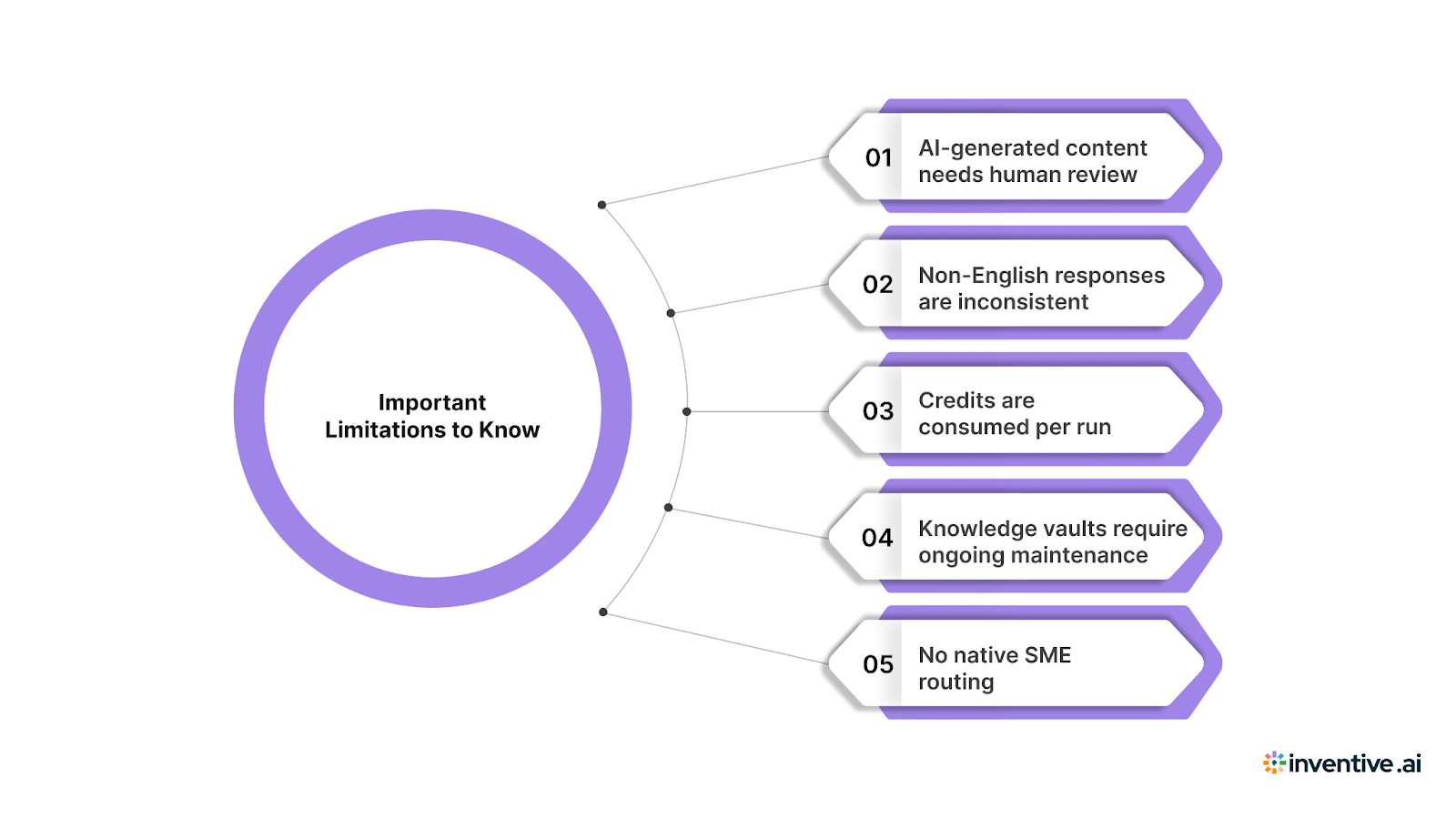
- AI-generated content needs human review: HubSpot's own documentation states that AI agents may occasionally generate incorrect, biased, or misleading information, especially in statistics and facts. Every output needs to be proofread and edited before sending.
- Non-English responses are inconsistent: The LLM powering the agent produces less reliable results in non-English languages. If you're responding to international RFPs, use extra care.
- Knowledge vaults require ongoing maintenance: The agent is only as good as the documents you feed it. If your pricing changes, your team changes, or your product evolves, the vault needs updating manually.
- No native SME routing: If a question needs input from your Security team or Legal counsel, there's no built-in workflow to route it to the right person, track completion, or flag it as blocked.
When HubSpot's RFP Agent Is the Right Call?
This setup works well if you are:
- A small team handling fewer than 10 RFPs per year.
- Already deeply embedded in HubSpot and not looking to add another tool.
- Responding to relatively straightforward RFPs that don't require heavy SME coordination.
- Using RFP responses as an extension of your CRM workflow rather than a standalone revenue motion.
In these cases, the setup investment is worth it, and the output quality is sufficient.
When You've Outgrown It: The 10+ RFP Threshold
Here's the honest truth: when RFPs become a serious revenue channel, 10 per year or more, the friction in HubSpot's general-purpose approach adds up fast. Manual knowledge vault upkeep, per-run credit costs, no SME routing, and output quality that needs heavy editing eat into the time savings the AI was supposed to deliver.
This is exactly the problem Inventive AI was built to solve.
Inventive AI is a purpose-built AI RFP platform, not a CRM feature, but a dedicated engine for the entire RFP response workflow. Here's what that means in practice:
1. Automated document parsing: Upload the RFP, and every question is automatically extracted, categorized, and organized. No manual triaging.
2. Living AI answer library: Inventive AI builds and maintains a semantic answer library that gets smarter with every RFP you complete. It surfaces the most relevant, highest-performing past answers based on the incoming question, not just keyword matches.
3. Built-in SME routing: Questions that need human input are automatically routed to the right subject matter expert, with deadline tracking and completion status. Nothing gets dropped.
4. Win intelligence: Over time, the platform identifies which answers and framings are correlated with wins, and surfaces those insights to sharpen future responses.
5. The results speak for themselves: teams using Inventive AI report 50% higher win rates and 90% faster response times.
| Features | HubSpot RFP Agent | Inventive AI |
|---|---|---|
| RFP document parsing | Manual upload, manual review | Automated extraction |
| Answer library | Manual knowledge vault | AI-powered, self-updating |
| RFP Type Support | Q&A only | PDFs, Excel, PPT, & more |
| SME routing | Not available | Built-in with tracking |
| Per-use cost | HubSpot Credits per run | Flat platform pricing |
| Win rate intelligence | Not available | Built-in |
| Best for | <10 RFPs/year | 10+ RFPs/year |
| Reported time savings | Moderate | 90% faster |
| Reported win rate improvement | N/A | +50% |
If RFPs are a real revenue channel for your team, Inventive AI is worth a serious look. The ROI on winning one additional deal typically covers the platform cost many times over. Start with Inventive AI →
Final Verdict
HubSpot's RFP Agent is a genuinely useful tool, and it's impressive that it's available across so many plan tiers. For teams that are already HubSpot-heavy and handling a moderate number of RFPs, the setup in this guide will deliver real-time savings and more consistent output quality.
But be clear-eyed about what it is: a general-purpose AI agent adapted for RFP use, not a purpose-built RFP platform. The knowledge vault setup takes work to do right, credits add up with volume, and the absence of SME routing means human coordination overhead doesn't go away.
Under 10 RFPs a year? Follow this setup guide, and you'll be in great shape.
10 or more RFPs a year? You're leaving wins on the table. Take a look at what a purpose-built platform can do.
Teams using Inventive AI report winning 50% more RFPs and responding 90% faster. If RFPs are a meaningful part of your revenue motion, it pays for itself on the first win. See Inventive AI in action →
Frequently Asked Questions
1. Does HubSpot have an RFP Agent?
Yes. HubSpot's RFP Agent is a real product, currently in Beta, built on the Breeze AI platform. It lives in Breeze Studio and is available to Professional, and Enterprise plan users across most HubSpot Hubs.
2. What plan do I need to use the HubSpot RFP Agent?
The RFP Agent is available on Professional, and Enterprise plans across Marketing Hub, Sales Hub, Service Hub, Content Hub, Smart CRM, and Commerce Hub. Data Hub requires Professional or Enterprise.
3. How do I install the HubSpot RFP Agent?
Navigate to Breeze → Marketplace, search for "RFP agent," and click Add. Super Admin access is required.
4. Can the HubSpot RFP Agent access my CRM data?
Yes. When you enable "Your HubSpot CRM" under the agent's tools configuration, it can reference your CRM records, contacts, deals, and knowledge base when generating responses.
5. What file types can I upload to the RFP Agent?
The RFP file for each run can be uploaded from your computer or from HubSpot's Files tool. Knowledge vault documents support .pdf, .txt, .md, .html, .pptx, and .docx formats.
6. What's the best AI tool for high-volume RFP teams?
For teams responding to 10 or more RFPs per year, purpose-built platforms like Inventive AI deliver significantly better results than a CRM-based setup. Inventive AI users report 50% higher win rates and 90% faster response times, with automated document parsing, AI answer libraries, and SME routing built in from day one.

.avif)