Gemini + NotebookLM for RFPs: How to Use Google's AI for RFP Responses
If your company already runs on Google Workspace, you have two AI tools that can take real work off an RFP response: Gemini and NotebookLM. Used together, they cover more of the RFP process than either one alone, and more than most teams realize. Used carelessly, they produce the same confident, unsourced answers every general AI tool does.
This guide covers what each tool is good at, how to set them up as an RFP system, a step-by-step workflow with copy-paste prompts, how to handle security questionnaires in Sheets, the privacy settings to check first, and the honest limits. We've already covered Claude for RFPs, ChatGPT for RFPs, and LLMs for RFPs more broadly. Google's tools deserve their own guide, because they work differently.
A note on names. On July 16, 2026, Google renamed NotebookLM to Gemini Notebook. Google describes it as the same standalone product, now more connected to the Gemini app and Search. Most people still search for and call it NotebookLM, so this guide uses both names. Your notebooks, sources, and settings carried over unchanged.
A disclosure up front: we build AI RFP response software at Inventive AI, and our cofounder Gaurav Nemade was previously a founding PM on Gemini at Google DeepMind. So we know these models well and we have a point of view. Most of this guide is for the reader who wants to make Google's tools work today.
Gemini vs. NotebookLM: which tool does what in an RFP
The mistake most teams make is picking one. The two tools are built for different jobs, and an RFP needs both.
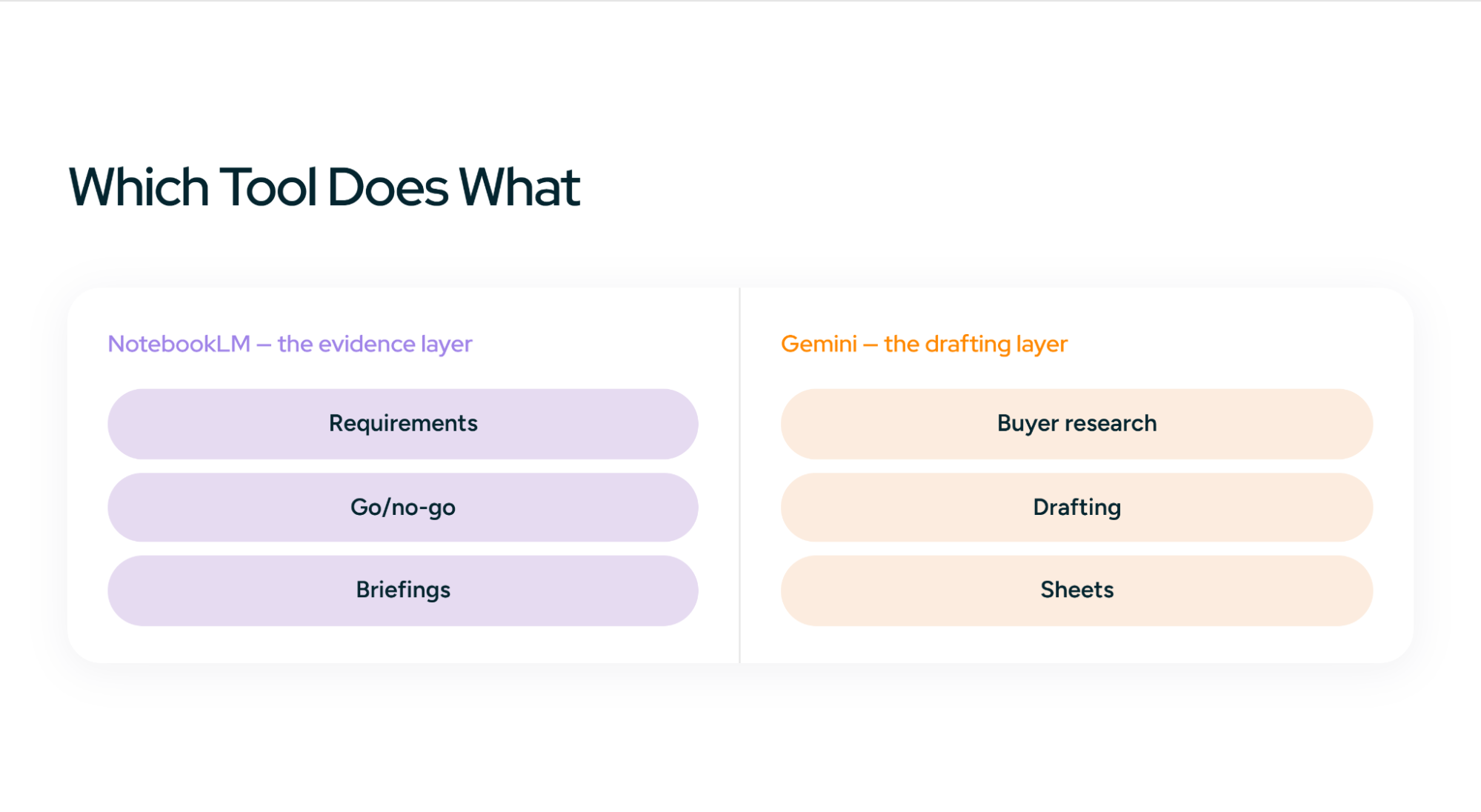
NotebookLM (Gemini Notebook) is your evidence layer. It answers only from the sources you add to a notebook, and every answer carries inline citations back to the exact passage. That's the behavior you want when the question is "what does our security policy actually say?" It's the closest thing in the Google stack to a governed answer library.
Gemini is your drafting and doing layer. It works inside Docs, Sheets, Gmail, and Drive, and it can draw on general knowledge and the web. That makes it better at writing polished narrative, researching the buyer, and working directly in the files you'll submit. It also makes it more willing to fill gaps with plausible guesses.
| RFP job | Best tool | Why |
|---|---|---|
| Extracting requirements from the RFP | NotebookLM | Answers are cited to the RFP's own pages |
| Answering "what's our approved answer?" | NotebookLM | Grounded only in your sources |
| Go/no-go and opportunity analysis | NotebookLM | Compares the RFP against your ICP and capability docs |
| Researching the buyer and competitors | Gemini (Deep Research) | Needs the open web, not your files |
| Drafting narrative sections | Gemini in Docs | Better prose, works in the response document |
| Filling a questionnaire in a spreadsheet | Gemini in Sheets | Works in the cells, not a chat window |
| Briefing the bid team | NotebookLM | Audio and video overviews, mind maps, shared notebooks |
| Final consistency review | Gemini in Docs | Reviews the assembled document |
The working rule: facts come from NotebookLM, words come from Gemini. Gemini drafts against evidence that NotebookLM has already retrieved and cited. Never the other way round.
Google has been pulling the two closer together. Notebooks now sync between the Gemini app and Gemini Notebook, so a notebook you build in one shows up in the other. One caution from independent analysis: chats about a notebook inside the Gemini app follow Gemini's privacy rules, not NotebookLM's. We cover what that means for bid material in the privacy section below.
How to set up Gemini and NotebookLM for RFP work
Setup decides answer quality more than prompts do. Spend an hour here before you touch a live RFP.
Step 1: Use a Workspace account, not a personal one
Run everything through your company's Google Workspace account. Workspace carries stronger data commitments than a personal Gmail account (covered in the privacy section), and it lets you share notebooks and Gems inside your organization. If your plan doesn't include Gemini or NotebookLM, ask your admin before anyone uploads bid material to a personal account.
Step 2: Build two kinds of notebooks
This is the most important design decision. NotebookLM retrieves across every source in a notebook at once, and a notebook stuffed with loosely related documents produces vaguer answers. One independent test found a messy 40-source notebook gave noticeably weaker answers than a tight 9-source one. So split your content:
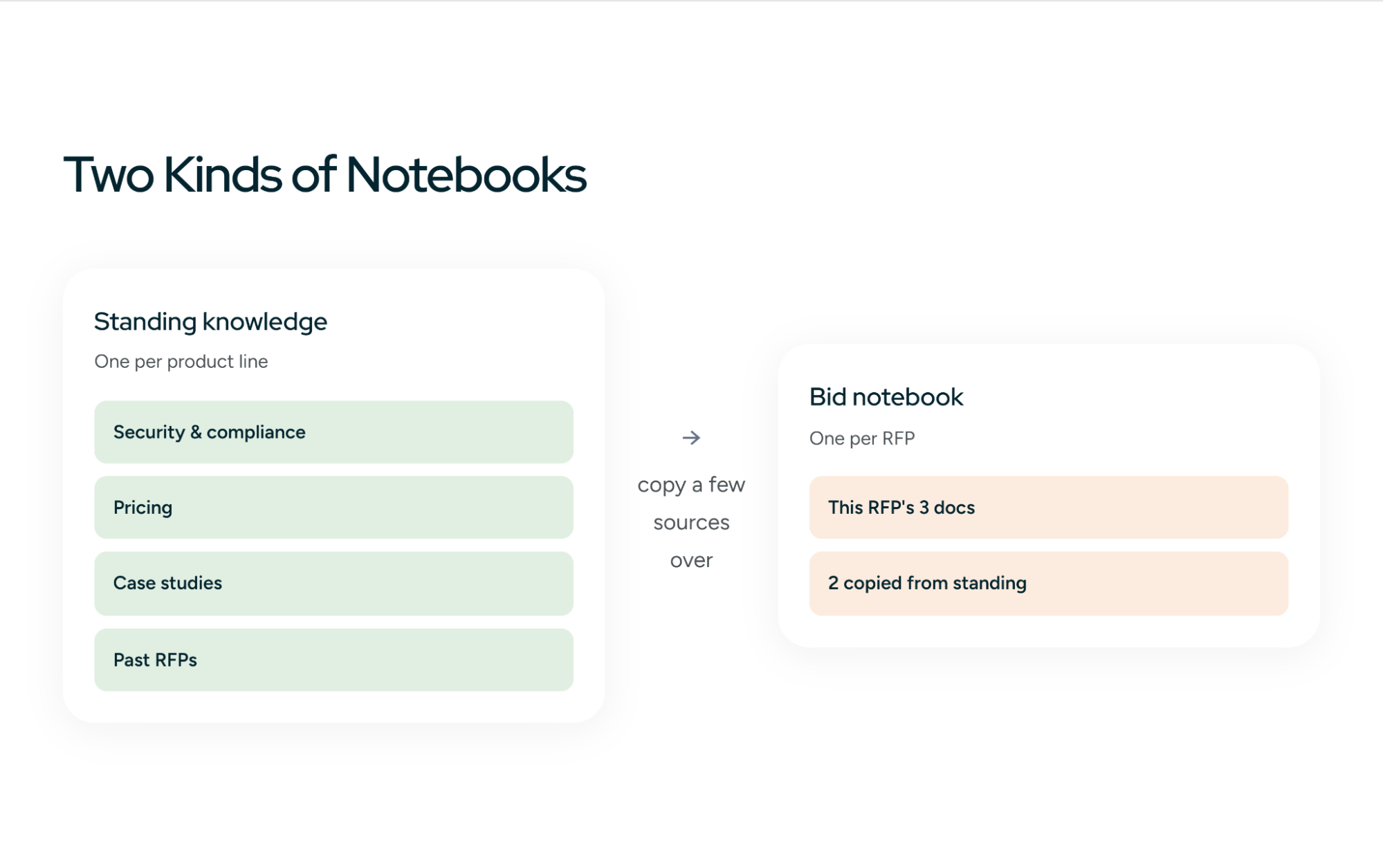
- A standing knowledge notebook per product line or business unit. This holds approved, current content only: product documentation, security policies, certifications, implementation methodology, support model, company boilerplate, and three to five recent winning proposals.
- A bid notebook per live RFP. This holds the RFP package, amendments, Q&A responses from the buyer, and only the knowledge sources relevant to this bid.
Notebooks can't reference each other, so the bid notebook needs its own copy of the relevant knowledge sources. That's a feature here, not a bug: it forces you to choose what's relevant.
Step 3: Know your limits before you hit them
Every plan caps each source at 500,000 words or 200 MB. The number of sources per notebook depends on your plan:
| Plan | Sources per notebook |
|---|---|
| Free (Standard) | 50 |
| Plus | 100 |
| Pro (and qualifying Workspace editions) | 300 |
| Ultra | 600 |
Google adjusts these limits periodically and Workspace editions map to tiers differently, so check your own plan in the app. For most RFPs, 50 sources is plenty if you're disciplined about what goes in.
Step 4: Prefer Google Docs over PDFs for anything that changes
This is the biggest practical difference from ChatGPT and Claude. Since May 2026, NotebookLM automatically syncs Google Docs, Sheets, and Slides sources with the original file in Drive. Edit the security overview in Drive and the notebook follows. PDFs stored in Drive don't auto-sync and still need a manual refresh.
So keep living content (security answers, product capabilities, pricing guardrails) as Google Docs, and use PDFs only for things that don't change, like signed certifications. That one habit removes a large share of stale-answer risk. It doesn't remove all of it, which we'll come back to.
Step 5: Set custom instructions on every notebook
NotebookLM lets you configure how a notebook responds. Paste this into the knowledge notebook's custom instructions:
You support an RFP response team. Follow these rules for every answer:
1. Answer only from the sources in this notebook. Never use general
   knowledge to make claims about our company, products, customers,
   certifications, or results.
2. Cite the source for every factual claim.
3. If the sources do not answer the question, reply exactly:
   "NO_DATA - needs SME input" and name the type of SME who could answer.
4. If two sources conflict, do not choose. Quote both and flag
   "CONFLICT - needs owner review."
5. Quote certifications, standards, and numbers exactly as written.
Rule 4 matters more in NotebookLM than anywhere else. Because it answers faithfully from whatever you give it, two contradictory documents produce a confidently wrong answer. Asking it to surface conflicts turns a hidden risk into a visible to-do.
Step 6: Build two or three Gems for the drafting side
Gems are custom versions of Gemini with their own instructions and reference files. When a Gem references a file from Drive, it uses the latest version, and Workspace users can share Gems across the organization with admin controls. Build:
- RFP Writer: your style guide, two or three gold-standard answers, and the drafting prompt from Step 4 of the workflow below.
- RFP Reviewer: the evaluator-style critique prompt from Step 6 below.
- Buyer Researcher (optional): instructions for buyer and competitor research using Deep Research.
Keep facts out of Gems. A Gem's job is how to write. NotebookLM's job is what's true.
The 7-step Gemini + NotebookLM RFP workflow
Each step names the tool, what goes in, and what comes out. Every prompt is ready to paste.
Step 1: Extract every requirement (NotebookLM)
Add the full RFP package to the bid notebook, including appendices and amendments. NotebookLM's citations are the reason to do this here rather than in Gemini: every extracted requirement links back to the page it came from, so spot-checking takes minutes.
Extract every requirement from the RFP documents in this notebook.
Return a table with these columns:
| ID | Requirement (quoted verbatim) | Section/page | Mandatory (Y/N) | Type | Likely owner |

Type is one of: Technical, Security, Legal, Pricing, Submission, Other.
"Shall" and "must" are always Mandatory.
Include submission rules (deadline, format, page limits, required forms,
certifications) as their own rows.
Flag anything ambiguous as CLARIFY and suggest a question to submit
during the buyer's Q&A window.
End with every deadline in date order.
Paste the result into a Google Sheet. That sheet becomes your compliance matrix and the checklist for Step 7.
Step 2: Run a go/no-go (NotebookLM)
Add a short Google Doc to the bid notebook describing your ideal customer profile, hard disqualifiers, and minimum deal economics. Then:
Using the RFP and our ICP document, assess whether we should bid.
Score 0-100 on: solution fit against mandatory requirements (30%),
incumbent signals such as requirements written around one vendor (20%),
timeline feasibility (20%), compliance blockers we cannot meet (20%),
and deal size versus effort (10%).
Return: the weighted score, BID or NO BID, the three deciding factors
with cited RFP evidence, and any requirement where our sources show
no evidence we comply.
The last line is where NotebookLM earns its place. Because it only knows what's in your sources, "no evidence we comply" is a reliable signal of a real gap, not a guess. Our go/no-go decision guide covers the criteria in more depth.
Step 3: Research the buyer (Gemini Deep Research)
This is the one step that needs the open web. Use Gemini's Deep Research on the buyer's recent news, strategy, leadership priorities, incumbent vendors, and any public procurement history.
Research [BUYER NAME] to support our response to their RFP for
[SCOPE]. Cover: strategic priorities from the last 12 months, recent
leadership changes, current vendors in this category, any public
procurement records or awards, and industry regulations affecting
this purchase. Cite every source. Separate facts from inference.
Then save the report as a Google Doc and add it to the bid notebook. Now NotebookLM can connect buyer context to your evidence in later steps, and every claim about the buyer stays cited.
Step 4: Pull evidence, then draft (NotebookLM, then Gemini in Docs)
This is the core of the workflow, and the step most guides get wrong. Don't ask Gemini to draft from memory. Ask NotebookLM for an evidence pack first:
For RFP questions [IDs], return for each question:
1. The question, verbatim
2. Every relevant fact from our sources, each with its citation
3. Gaps: what the question asks that our sources don't cover
Do not write the answer. Only gather the evidence.
Work in batches of 10 to 20 questions grouped by section. Copy the evidence pack into your response Doc, then open Gemini in Docs (or your RFP Writer Gem) and draft against it:
Draft answers to the RFP questions above using ONLY the evidence
listed under each question. Rules:
- Answer the question directly in the first sentence.
- Address every part of the question, in the order asked.
- Use the buyer's own wording as a lead-in so evaluators can find
  each answer.
- Connect each point: buyer requirement -> our capability -> evidence
  -> outcome for this buyer.
- Where the evidence pack lists a gap, write "NO_DATA - needs SME
  input" instead of filling it.
- Stay under [N] words per answer.
- Match the tone of the approved example answers.
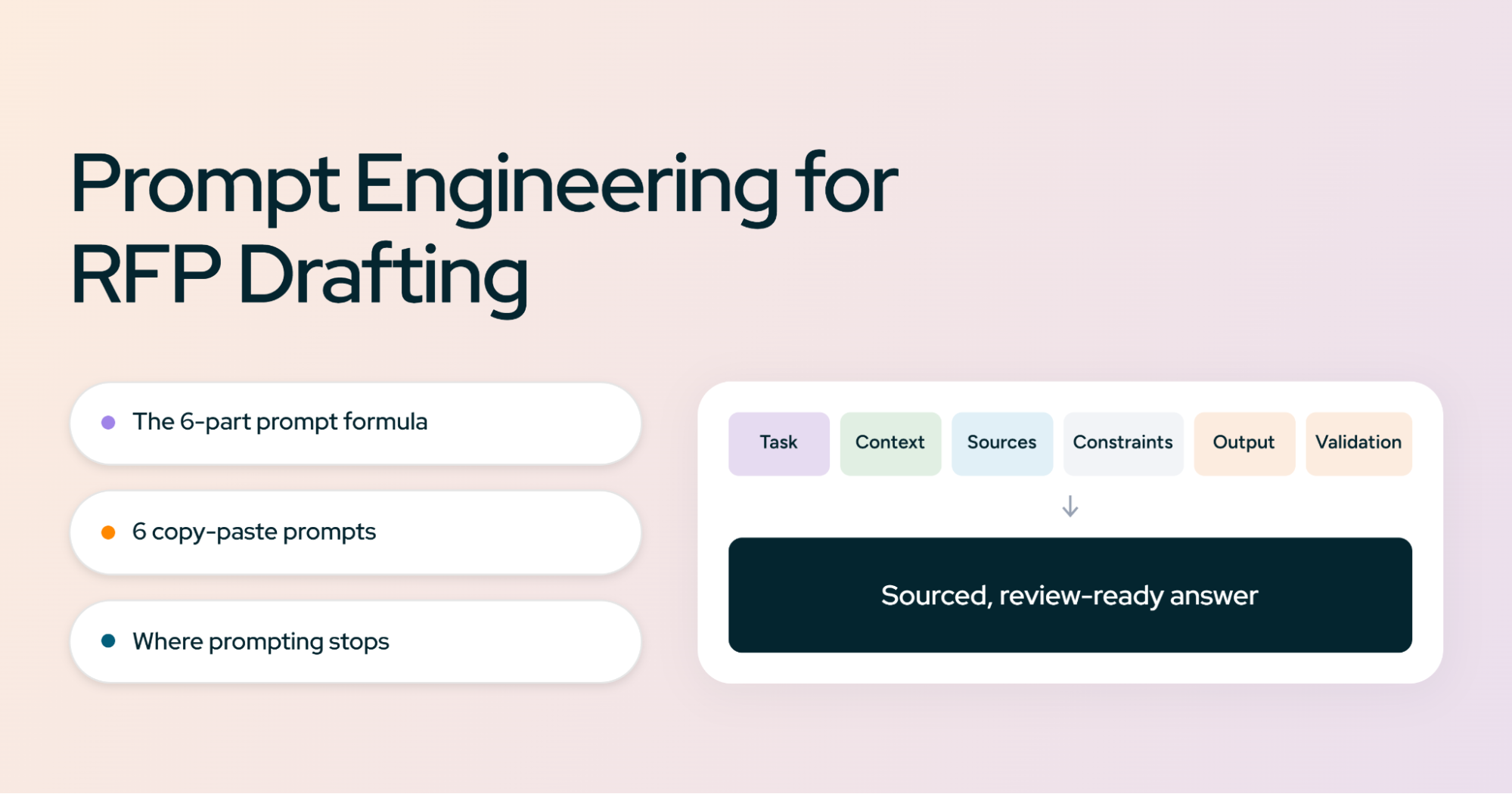
This split is the whole trick. NotebookLM's grounding keeps the facts honest. Gemini's drafting makes them read well. Neither does both jobs as well alone. For more drafting patterns, see our guide to prompt engineering for RFP drafting.
Step 5: Brief the bid team (NotebookLM)
This is something ChatGPT and Claude can't do as easily. Generate an Audio Overview or video overview of the bid notebook focused on buyer priorities, evaluation criteria, and risks. SMEs who won't read a 90-page RFP will listen to a 10-minute briefing on a commute. Share the notebook so reviewers can ask their own cited questions instead of messaging the proposal manager.
To steer the overview, use the customize option with something like: "Focus on what the buyer will score most heavily, the three biggest risks to our bid, and which SMEs need to act this week."
Step 6: Critique the drafts (Gemini, RFP Reviewer Gem)
Ask for findings, not a rewrite:
Act as the buyer's evaluator scoring this response. For each answer,
list: requirements not addressed, claims without evidence, vague or
generic sentences, contradictions with other answers, and missed
chances to tie the answer to the buyer's priorities.
Give the exact sentence, the problem, and a specific fix.
Score each answer 1-10. Do not rewrite anything.
Accept the fixes you agree with, then ask Gemini to apply only those. Then send any claim the critique flagged as unsupported back to NotebookLM to verify against sources.
Step 7: Final compliance check (Gemini in Docs + your compliance Sheet)
Run this on the assembled document with the Step 1 requirements table attached:
Check this full response against the attached requirements table.
Return PASS / NEEDS REVIEW / BLOCKED for each of: every mandatory
requirement answered, no unresolved NO_DATA or CONFLICT flags,
consistent product names, pricing, and timelines across sections,
word and page limits, and question numbering that matches the RFP.
List BLOCKED items first, each with its exact location.
BLOCKED means you can't submit. NEEDS REVIEW means a human decides. Everything gets a final human read before it goes out.
Security questionnaires and spreadsheets: where Google has an edge
The ChatGPT and Claude guides both hit the same wall: answers come out of a chat window and have to be carried into the buyer's Excel workbook by hand. Google's stack softens that, because Gemini works inside Sheets.
Here's a workflow that holds up for SIG, CAIQ, and custom vendor assessments:
- Open the buyer's workbook in Google Sheets on a copy. Never work on the original. Converting can disturb dropdown validation, merged headers, protected ranges, and hidden rows, so you'll export back to Excel and compare at the end.
- Pull evidence from a security-only notebook. Keep a dedicated NotebookLM notebook for security content: your SOC 2 report summary, policies, the architecture overview, and approved past questionnaire answers. Mixing it with sales collateral invites marketing language into answers that should be precise.
- Batch questions by control domain (access control, encryption, incident response, and so on) and run the evidence-pack prompt from Step 4 on each batch.
- Paste answers into the answer column, then use Gemini in Sheets to check format rules: Yes/No columns contain only Yes or No, comment fields stay under any character limit, and nothing is left blank.
- Export to .xlsx and diff against the original before submitting. Check that validation, formatting, and tab order survived.
Use this stricter prompt for security answers:
These are security questionnaire items. Rules:
- Never infer a certification, control, encryption standard, data
  location, retention period, or audit date. State only what the
  sources say, using their exact terms.
- For Yes/No items, answer Yes only if a source explicitly supports it.
  Otherwise answer "NO_DATA - needs Security review."
- Keep comments factual. No marketing language.
- Cite the source document and section for every answer.
Be realistic about the ceiling. For a 300-row questionnaire, this is still dozens of batches and a lot of pasting, and someone on the security team should review every answer. Our roundup of AI agents for security questionnaires covers tools built specifically for this, and Inventive's security questionnaire software fills the buyer's workbook directly.
Privacy and data security: check these before the first upload
RFP documents are often confidential, and your answers describe your security posture. Five minutes here saves an awkward conversation with Legal later.
Gemini inside Workspace apps. Google states that Gemini in Gmail, Docs, Drive, Sheets, and Slides uses your content to respond to prompts but doesn't use it to train Gemini or other generative AI models. Workspace data isn't used to train models outside Workspace without permission.
Gemini Notebook (NotebookLM). Google's privacy page says content in Gemini Notebook isn't used to directly train its foundational models unless you choose to give feedback. Qualifying work accounts access it as a Workspace core service or add-on, under Workspace terms.
The gap to watch: cross-app notebooks. Data that Gemini Notebook shares with other Google services, such as the Gemini app, is governed by those services' own privacy notices. In practice, that means chatting with a notebook from inside the Gemini app may fall under different rules than chatting in Gemini Notebook itself. For bid material, keep notebook conversations in Gemini Notebook unless your admin has confirmed the Gemini app settings for your organization.
Personal accounts. Google notes that if a Workspace user shares data with Gemini Apps through a personal account, that data may be used for model training and improvement. Don't let anyone run bid material through a personal Gmail account.
Three more checks:
- Read the RFP's confidentiality clause. Some issuers restrict sharing bid documents with any third-party service, and some public-sector solicitations now ask whether and how AI was used.
- Mind notebook sharing. A shared bid notebook exposes every source in it. Share with named people, not the whole organization.
- Ask your admin what's enabled. Gemini features, Gem sharing, and NotebookLM access are all controlled in the Admin console, and they vary by Workspace edition.
This is a summary of Google's published policies as of this writing, not legal advice. Policies change, so confirm against the current terms for your plan.
Where Gemini and NotebookLM break down for RFPs
The Google stack solves a couple of problems that ChatGPT and Claude leave open, especially source grounding and file freshness. But it shares the same ceiling, and it adds a few problems of its own.
Grounded is not the same as correct. NotebookLM answers faithfully from your sources, and Google's own materials still warn outputs may contain inaccuracies. If the source is outdated, the answer is outdated with a citation attached, which can make it more convincing, not less.
Auto-sync keeps files fresh, not content governed. Drive sync means the notebook follows the document. It doesn't tell you the document is wrong, that two documents disagree, or that a security answer hasn't been reviewed in a year. Nobody owns the content, sets expiry dates, or retires old answers unless you build that process yourself. PDFs don't sync at all.
Two tools means two contexts. Evidence lives in NotebookLM and drafts live in Docs. Every batch crosses that gap by copy and paste. On an 80-question RFP, that's a lot of crossings, and each is a chance to lose a citation or paste an answer under the wrong question.
Notebooks don't talk to each other. You can't query the security notebook and the product notebook together. As your content grows, you either duplicate sources across notebooks or accept blind spots.
There's no workflow layer. No assignments, no reviewer routing, no approval states, no audit trail of who approved which answer. Shared notebooks and comment threads in Docs are collaboration, not process control.
Portals are out of reach. Many enterprise and public-sector RFPs arrive through procurement portals like Ariba, Coupa, or Jaggaer. Nothing in this workflow gets answers into a portal except a person typing.
Limits bite on large bids. Fifty sources on a free plan sounds like plenty until a complex RFP brings 30 attachments of its own, plus your knowledge base.
None of this rules the Google stack out for a small team with modest volume. It does mean the workflow above has a natural ceiling, and the signs you've hit it are in the next sections.
Gemini + NotebookLM vs. ChatGPT vs. Claude for RFPs
The best choice usually follows the suite your company already lives in. Here's how the three compare on the jobs that matter for RFPs.
| RFP need | Gemini + NotebookLM | ChatGPT | Claude |
|---|---|---|---|
| Source-grounded answers | Strongest: NotebookLM answers only from sources, with inline citations | Needs explicit instructions in Projects or GPTs | Needs explicit instructions in Projects or Skills |
| Keeping sources current | Auto-syncs Google Docs, Sheets, Slides from Drive | Manual file replacement | Manual file replacement |
| Working in the response file | Gemini in Docs and Sheets | Canvas; Excel add-in | Chat output; file creation |
| Buyer research | Deep Research | Deep Research | Research |
| Team briefing | Audio and video overviews, shared notebooks | Shared Projects | Shared Projects |
| Reusable workflows | Gems | Custom GPTs | Skills |
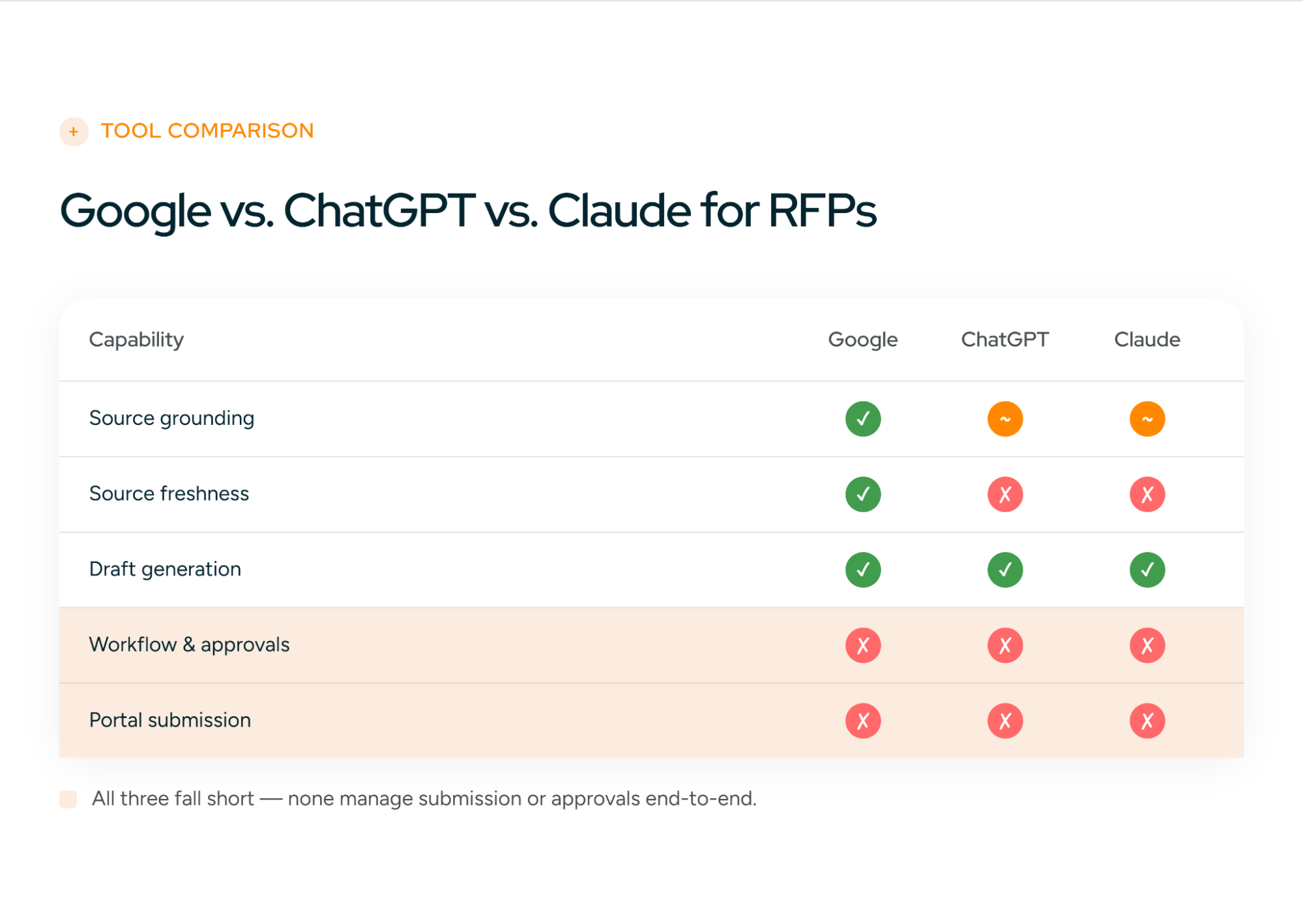
| Workflow, approvals, audit trail | None | None | None |
| Portal submission | None | None | None |
Google's edge is grounding and freshness: NotebookLM's citation-first design and Drive sync address two of the biggest risks in AI-drafted RFPs. ChatGPT and Claude are more flexible in a single chat, and many teams find Claude's long-document drafting stronger.
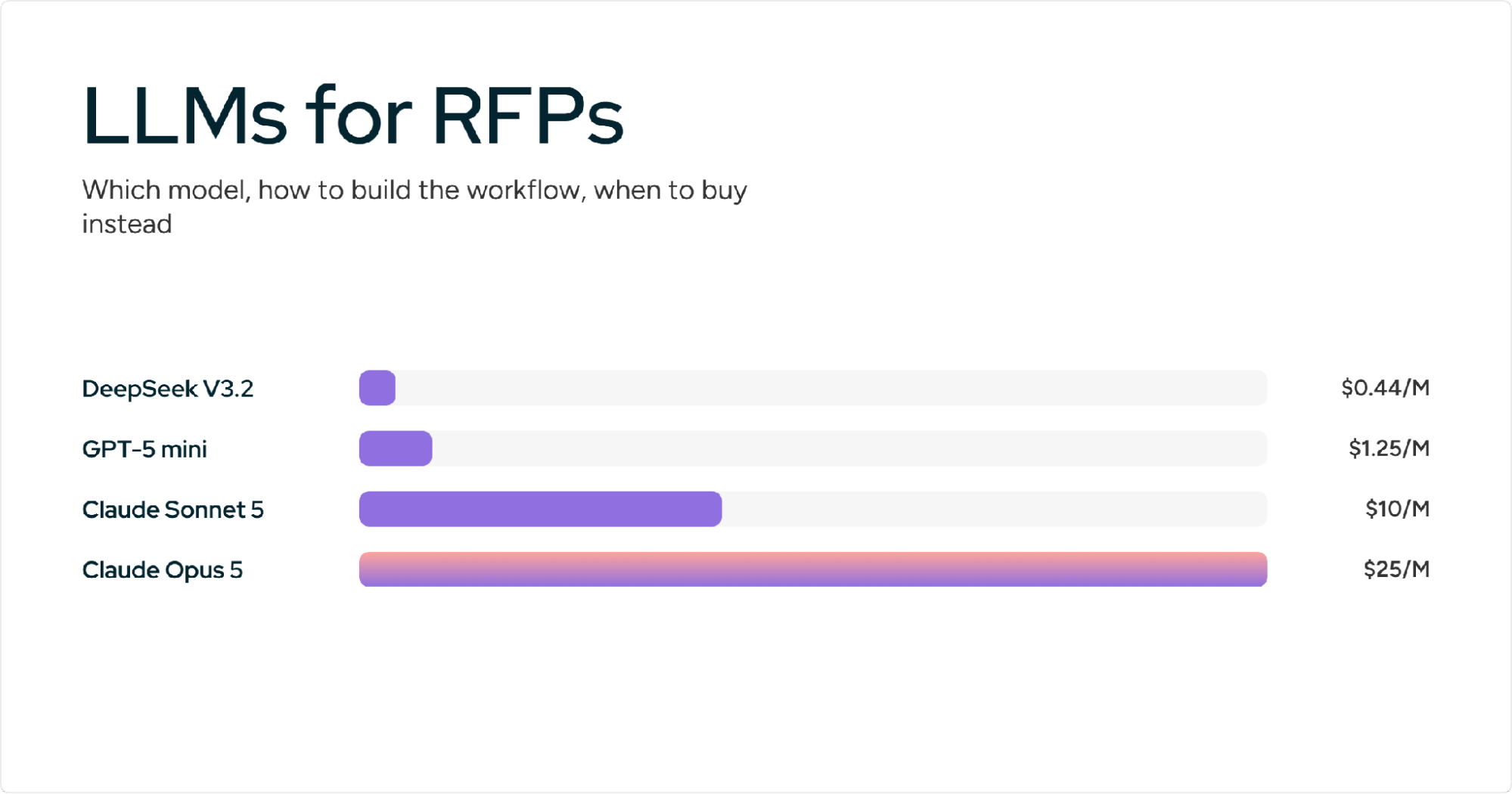
The bottom two rows are the same for all three, and they're the rows that matter most once volume grows. For the full walkthroughs, see Claude for RFPs and ChatGPT for RFPs. If you're weighing the underlying models for a custom build, our LLMs for RFPs guide covers that, including where Gemini models fit.
When to move beyond Gemini and NotebookLM
The Google stack is probably enough if:
- You answer fewer than 10 to 15 RFPs a year
- One or two people own each response
- Your content fits in a few tidy notebooks and changes slowly
- Most RFPs arrive as Word or PDF, not portals or 40-tab workbooks
- You're comfortable moving answers between tools by hand
You've probably outgrown it if:
- Keeping notebooks clean has become someone's part-time job
- Four or more SMEs review each response and approvals live in comment threads
- Security questionnaires arrive weekly as rigid Excel workbooks
- RFPs come through Ariba, Coupa, or Jaggaer portals
- A prospect or auditor asks who approved an answer, and nobody can say
- Leadership wants win rates and turnaround times across every active bid
Two or three of the second list means the bottleneck has moved from drafting to process. Better prompts won't fix it.
Tired of pasting evidence between NotebookLM and Docs for every batch?
See Inventive draft every answer with citations in one pass.
How Inventive AI handles the same workflow
Inventive AI is an agentic RFP response platform built around the workflow this guide assembles by hand, and it connects to the Google Drive content you already have.
| What you do with Gemini + NotebookLM | What Inventive does |
|---|---|
| Curate separate notebooks per product and bid | One Knowledge Hub with live sync to Google Drive, SharePoint, Salesforce, Confluence, and Notion |
| Ask NotebookLM to flag conflicting sources | A Content Governance Agent flags conflicting, outdated, and duplicate content automatically |
| Pull evidence in NotebookLM, draft in Gemini, paste between | Response generation drafts every answer with citations and a confidence score in one pass |
| Run go/no-go and analysis prompts by hand | Built-in Go/No-Go and Full Response Analyzer strategic agents |
| Paste answers into the buyer's workbook | Full-document intake and export back into the issuer's Word or Excel format |
| Type answers into procurement portals | Portal Answers for Coupa, Ariba, and Jaggaer |
| Track reviews in comments and a side sheet | Assignments, reviewer workflows, and approvals |
| No reporting | Reporting on win rates, team output, and bottlenecks |
On security, Inventive is SOC 2 Type II compliant and customer data is never used to train public models.
Customers report the difference in production. Insider cut response time by 90% and lifted its win rate from 30% to 50%. AssetWorks Facilities measured a 422% ROI with $105K in net savings. Inventive holds a 5.0 rating across its reviews on G2, where G2's review summary notes reviewers report saving about five days per RFP. More in our customer stories.
Your notebooks will hit a limit
If you're curating notebooks, pasting evidence into Docs, copying answers into workbooks, and chasing SMEs in comment threads, the problem isn't the AI anymore. It's the workflow around it.
Book a 20-minute demo and bring the RFP your notebook couldn't handle.
Frequently Asked Questions
Is NotebookLM the same as Gemini Notebook?
Yes. Google renamed NotebookLM to Gemini Notebook on July 16, 2026. It's the same standalone product with the same notebooks, now with deeper links to the Gemini app and Search.
Can NotebookLM write a full RFP response?
It can draft answers, but it's better used as the evidence layer. NotebookLM shines at extracting requirements and retrieving cited facts from your sources. Gemini in Docs produces more polished prose. The strongest workflow uses NotebookLM to gather evidence and Gemini to draft against it.
How do I stop Gemini from making things up in RFP answers?
Don't let it draft from memory. Pull an evidence pack from NotebookLM first, then instruct Gemini to use only that evidence and to write "NO_DATA - needs SME input" for any gap. Then verify flagged claims back in NotebookLM before anything is submitted.
Is it safe to upload confidential RFPs to NotebookLM?
On a Workspace account, Google states your content isn't used to directly train its foundational models unless you give feedback, and Gemini in Workspace apps doesn't use your content for training. Avoid personal accounts, keep notebook chats in Gemini Notebook rather than the Gemini app unless your admin has confirmed settings, and check the RFP's confidentiality clause first.
How many documents can I add to a NotebookLM notebook for an RFP?
From 50 sources per notebook on the free plan up to 600 on the highest tier, with each source capped at 500,000 words or 200 MB. Smaller, focused notebooks give better answers than large mixed ones, so split standing knowledge from each live bid.
Does NotebookLM update when I edit a document in Google Drive?
Google Docs, Sheets, and Slides sources now sync automatically with the original file in Drive. PDFs stored in Drive still need a manual refresh. Sync keeps a file current, but it won't tell you whether the content itself is accurate or approved.
Can Gemini fill in an Excel security questionnaire?
Gemini can work on a questionnaire opened in Google Sheets, including checking answers against format rules. Work on a copy, export back to Excel at the end, and compare against the original, since conversion can disturb validation, merged cells, and hidden rows.
Gemini, ChatGPT, or Claude: which is best for RFPs?
Pick the one that fits your existing suite. Google's stack leads on source grounding and Drive sync. ChatGPT and Claude are more flexible in a single chat. None of the three provides approvals, audit trails, or portal submission.
.avif)